How to deploy an Amazon Product Advertising API MCP server to FastMCP Cloud and use it from Claude Desktop or Claude Code for product search.
If you’ve been running MCP locally, this is one way to share it with teammates or friends.
What you’ll learn
- Flow to deploy an MCP server to FastMCP Cloud
- Claude Desktop (Mac) config with custom headers
- Adding the server from Claude Code on the CLI
- Python smoke test against FastMCP Cloud
- Overview of the five MCP tools exposed
What is FastMCP Cloud?
FastMCP Cloud hosts MCP (Model Context Protocol) servers in the cloud. Deploy what you ran locally and access it from anywhere.
Here I wrapped Amazon Product Advertising API as MCP tools and deployed to FastMCP Cloud. Credentials go through HTTP headers.
I don’t plan to take the deployment down, but I may make it private if there’s abuse or if free limits are exhausted. If you pass no headers, default credentials are used (for testing).
Claude Desktop behavior
Calling from Claude Desktop worked as expected.
The Product API alone doesn’t expose “Kindle Unlimited or not,” so the model guesses from product text — accuracy is so-so. As a search / fetch path for Amazon data via MCP, it behaved solidly.
Deploying to FastMCP Cloud
Prerequisites
- Amazon Product Advertising API credentials (you can still probe within test limits without full keys)
- A FastMCP Cloud account
Step 1: Create a FastMCP project locally
Build and test the MCP server locally with fastmcp.
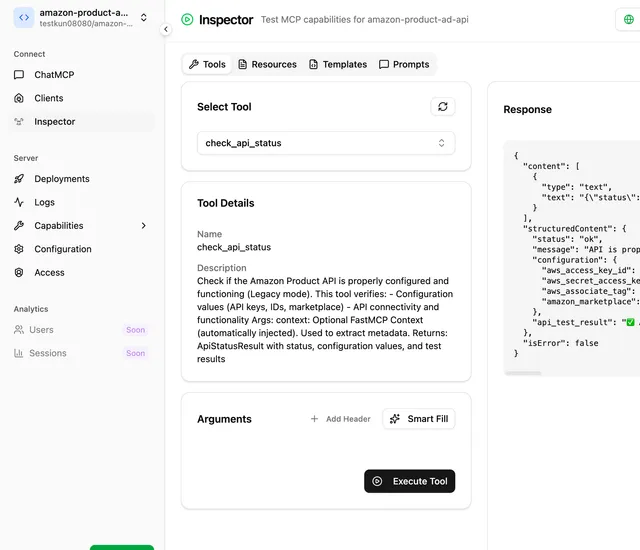
MCP Inspector helps verify behavior.
When it works, push to GitHub.
Step 2: Deploy on FastMCP Cloud
Deploy from the FastMCP Cloud setup page (browser flow here; CLI also exists).
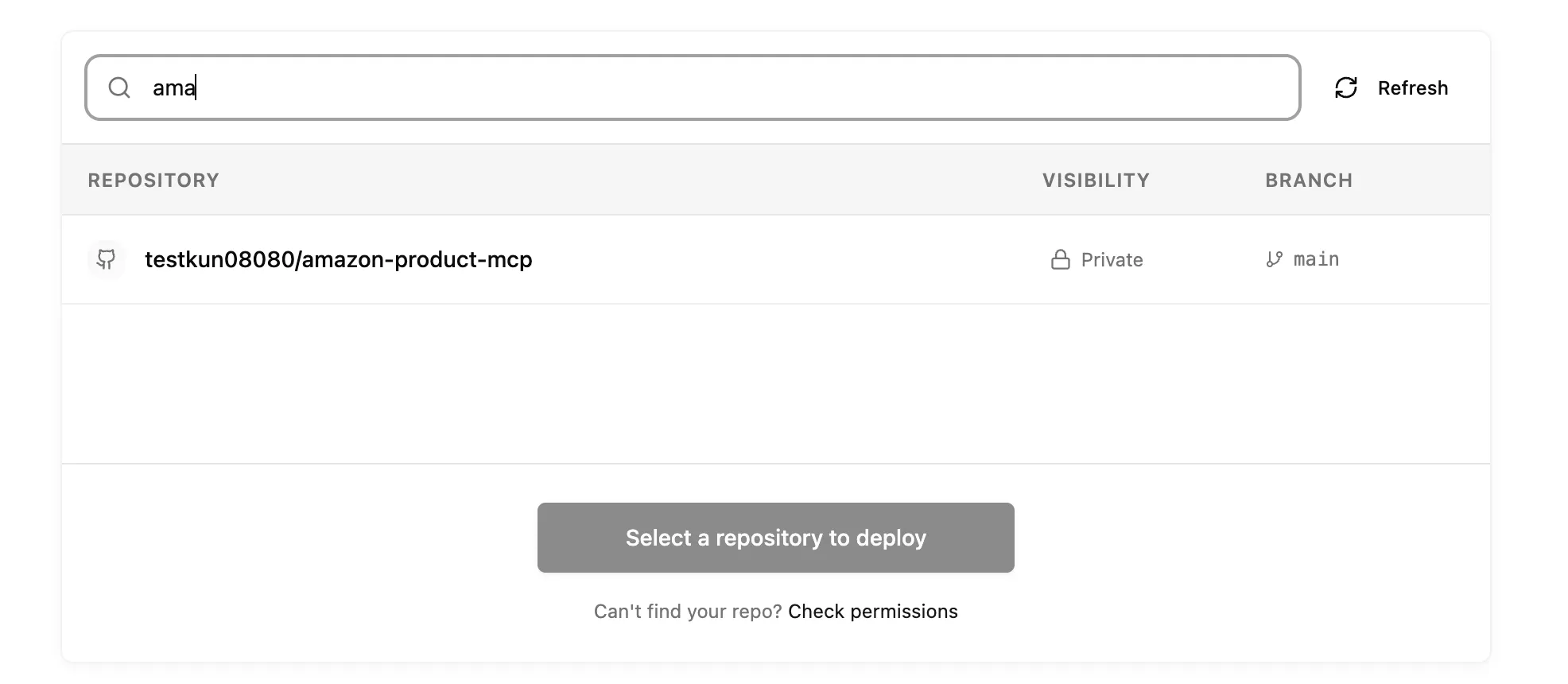
Select your repo.
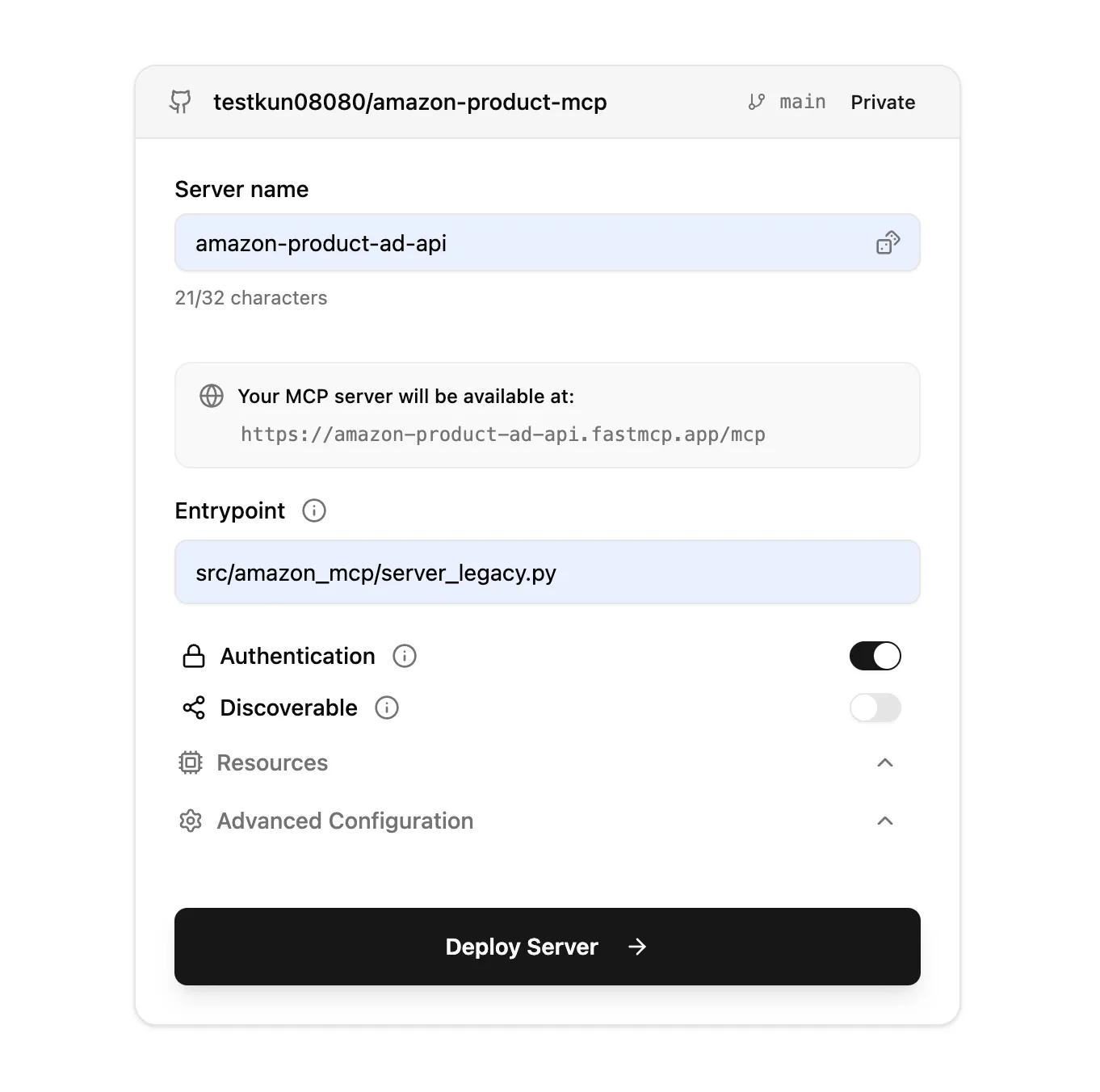
Point the entry file at your main module, name the deployment, and wait for the build.
Test on FastMCP Cloud
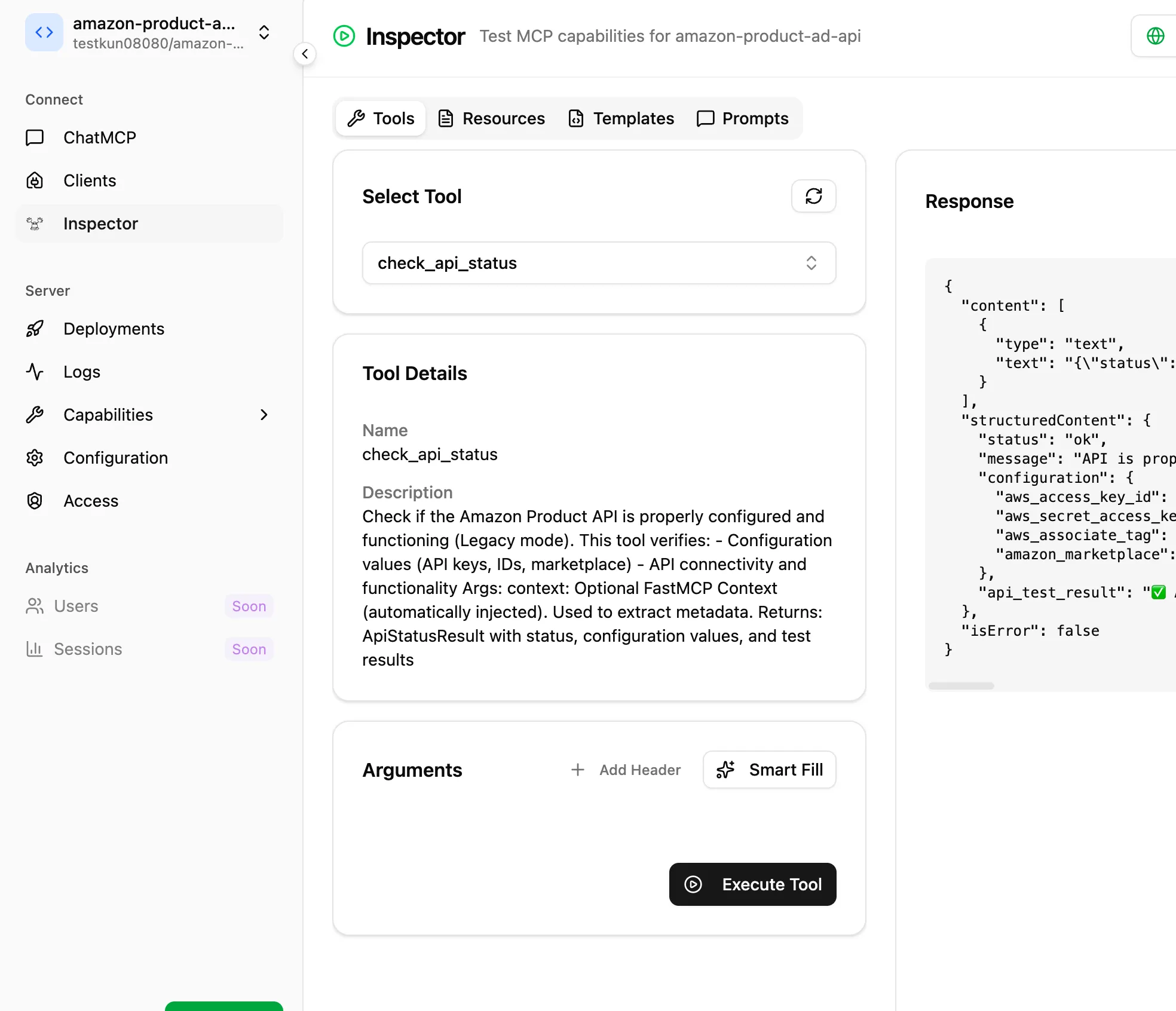
After the build, use the built-in inspector.
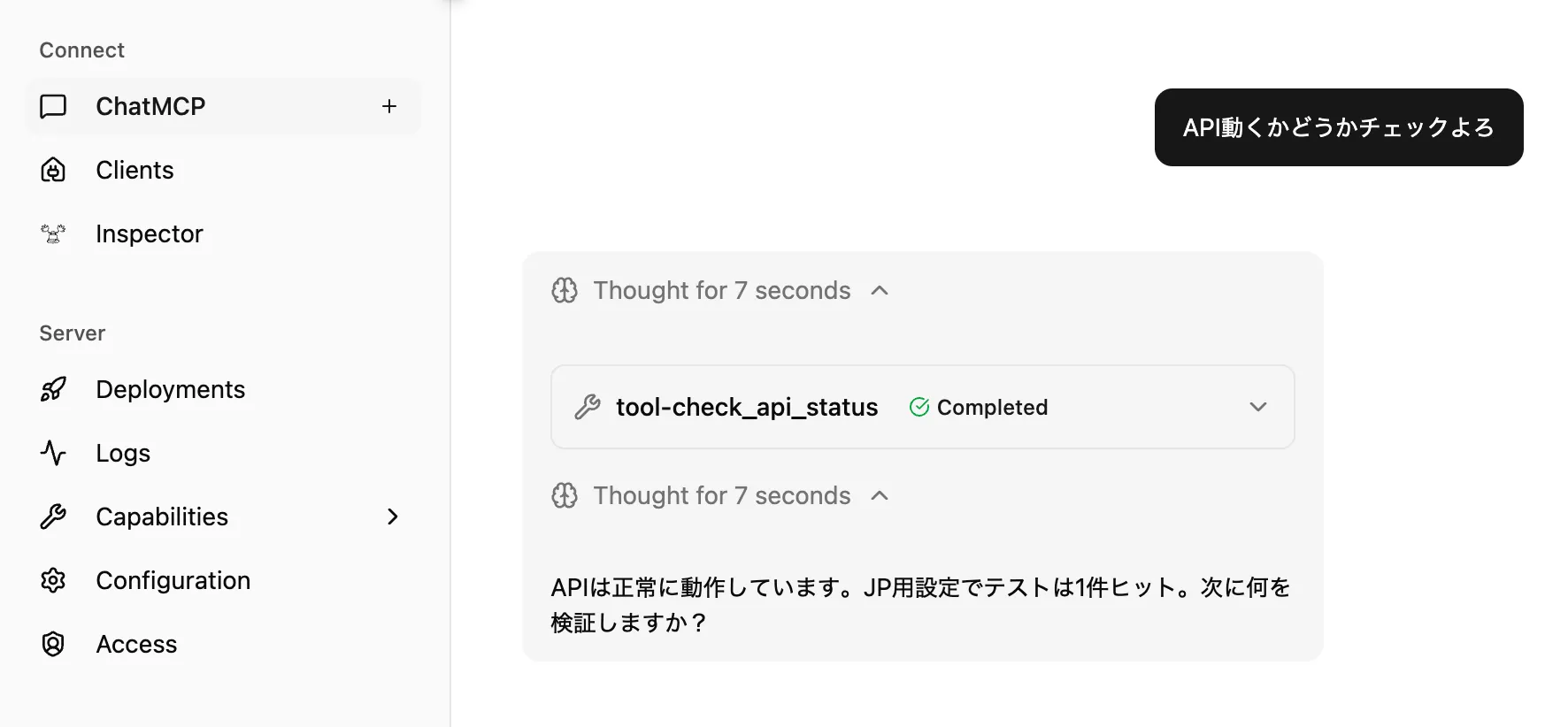
You can also exercise tools from chat.
Python connection test
import asyncio
from fastmcp import Client
from fastmcp.client.transports import StreamableHttpTransport
from fastmcp.client.auth import OAuth

MCP_URL = "https://amazon-product-ad-api.fastmcp.app/mcp"

HEADERS = {
    "aws_access_key_id": "YOUR_ACCESS_KEY_ID",
    "aws_secret_access_key": "YOUR_SECRET_ACCESS_KEY",
    "aws_associate_tag": "YOUR_ASSOCIATE_TAG",
    "amazon_marketplace": "JP",
}

oauth_auth = OAuth(
    mcp_url=MCP_URL,
    additional_client_metadata={
        "token_endpoint_auth_method": "client_secret_post"
    },
)

client = Client(
    transport=StreamableHttpTransport(
        MCP_URL, headers=HEADERS, auth=oauth_auth
    )
)


async def test_connection():
    try:
        async with client:
            await client.ping()
            print("Connected")
            return True
    except Exception as e:
        print(f"Connection failed: {e}")
        return False


async def main():
    result = await test_connection()
    if not result:
        print("Aborting.")
        return
    print("Result:", "OK" if result else "failed")


if __name__ == "__main__":
    asyncio.run(main())
Replace YOUR_* with your real keys.
Claude Desktop (Mac) — headers via mcp-remote
You may be prompted to authenticate when opening Claude Desktop. If the app looks frozen, bring the browser auth window to the front, or restart Claude.
Config file on Mac:
~/Library/Application Support/Claude/claude_desktop_config.jsonEnable Developer mode if it isn’t on.
Example using mcp-remote and headers:
{
  "mcpServers": {
    "amazon-product-ad-api": {
      "command": "npx",
      "type": "streamable-http",
      "args": [
        "mcp-remote@latest",
        "https://amazon-product-ad-api.fastmcp.app/mcp",
        "--header",
        "aws_access_key_id: YOUR_ACCESS_KEY_ID",
        "--header",
        "aws_secret_access_key: YOUR_SECRET_ACCESS_KEY",
        "--header",
        "aws_associate_tag: YOUR_ASSOCIATE_TAG",
        "--header",
        "amazon_marketplace: JP"
      ]
    }
  }
}- Replace
YOUR_*with your credentials. amazon_marketplace:JPfor Japan,USfor United States, etc.
Simpler remote connect (beta)
Per remote server docs, you can connect without custom headers — you’ll get default behavior, enough for smoke tests.
A browser window opens for FastMCP Cloud login.
Claude Code
Add from the shell:
claude mcp add --transport http amazon-product-api-test \
  https://amazon-product-ad-api.fastmcp.app/mcp \
  --header "aws_access_key_id: YOUR_ACCESS_KEY_ID" \
  --header "aws_secret_access_key: YOUR_SECRET_ACCESS_KEY" \
  --header "aws_associate_tag: YOUR_ASSOCIATE_TAG" \
  --header "amazon_marketplace: JP"
Verify:
claude
/mcp amazon-product-api-test
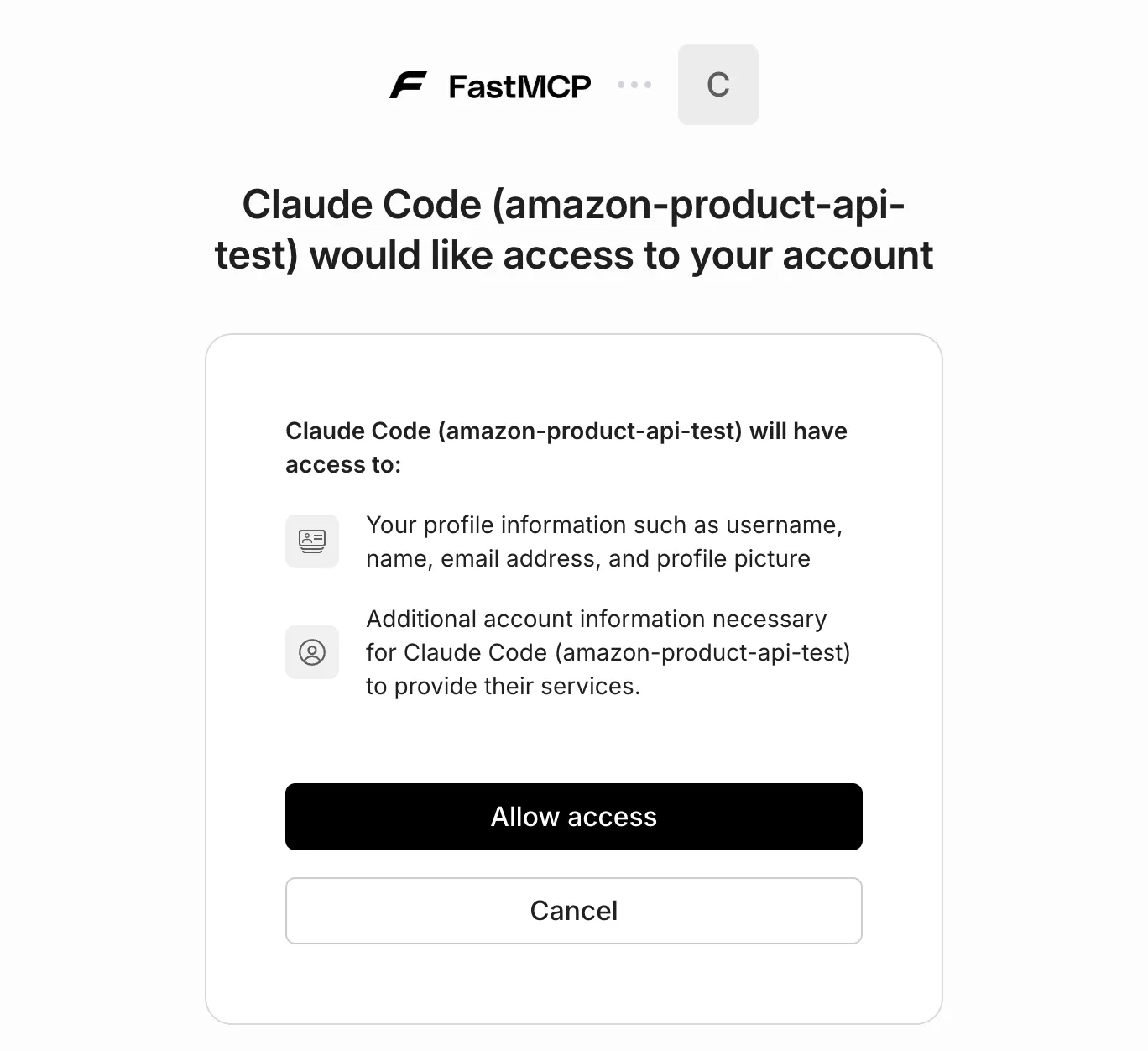
Complete auth in the browser when prompted.
Usage
Once configured, ask Claude in natural language, e.g.:
Use amazon-product-api-test to look up Nintendo games.MCP tools
| Tool | Purpose |
|---|---|
search_products | Keyword search on Amazon |
get_product_details | Fetch details by ASIN |
get_product_variations | Variations (color, size, …) |
get_browse_nodes | Category tree / browse nodes |
check_api_status | Check API configuration and connectivity |
Troubleshooting
MCP Inspector helps narrow issues.
Common checks:
- Wrong credentials — header names and values
- Claude Desktop “hangs” — finish browser auth, then return to the app
- Build errors — entrypoint path in FastMCP Cloud logs
Summary
Deploying to FastMCP Cloud was straightforward. Hosting in the cloud beats “only on my laptop” when you want to share.
Splitting concerns across multiple MCP servers instead of one mega-server stayed simpler for me.
References
- FastMCP documentation
- FastMCP Cloud
- MCP specification
- Amazon Product Advertising API
- mcp-remote (remote servers)