If you are searching for how to use Grok Tasks, here is the short version as of 2026-07-19:
- xAI’s product name for scheduled jobs is Automations (official announcement, Jul 16, 2026)
- Open grok.com/automations (or look for Tasks / Automations in the Grok sidebar — UI labels can vary by client)
- Set a schedule (Once / Daily / Weekdays / Weekly / Monthly / Yearly)
- Add clear instructions and save
This article keeps the original screenshot walkthrough from when the UI still labeled the feature Tasks, and calls out what official docs say now.
What Grok Tasks / Automations does
You define instructions once; Grok runs them on a schedule (or an email trigger) and reports back.
Per xAI’s Automations launch post (accessed 2026-07-19):
- Schedules: once, daily, weekdays, weekly, monthly, or yearly, at a time in your timezone
- Instructions are free-form chat-style text (plus optional files, connectors, skills, and mode)
- Each run opens a full conversation saved in run history
- You can choose report-back via email, app notification, both, or neither
- Available on grok.com and the Grok apps on iOS and Android
- You can also create an automation from chat, or start from a template
- Run now starts a manual test run
It makes catching up on news and niche topics much easier when you want a standing brief instead of searching manually.
Plan and availability (official)
From the same official announcement:
- Scheduled automations are available to everyone
- Email triggers (inbox filters on sender, recipient, or subject) require SuperGrok
xAI’s public launch post does not document a fixed free-tier cap such as “2 tasks per day.” If your account shows a daily limit, treat that as account/UI-specific — check what Grok shows in your workspace rather than assuming a global number from this post.
Opening Tasks / Automations
When I wrote the original walkthrough, Tasks lived in the Grok side menu with Settings, Files, and similar items:
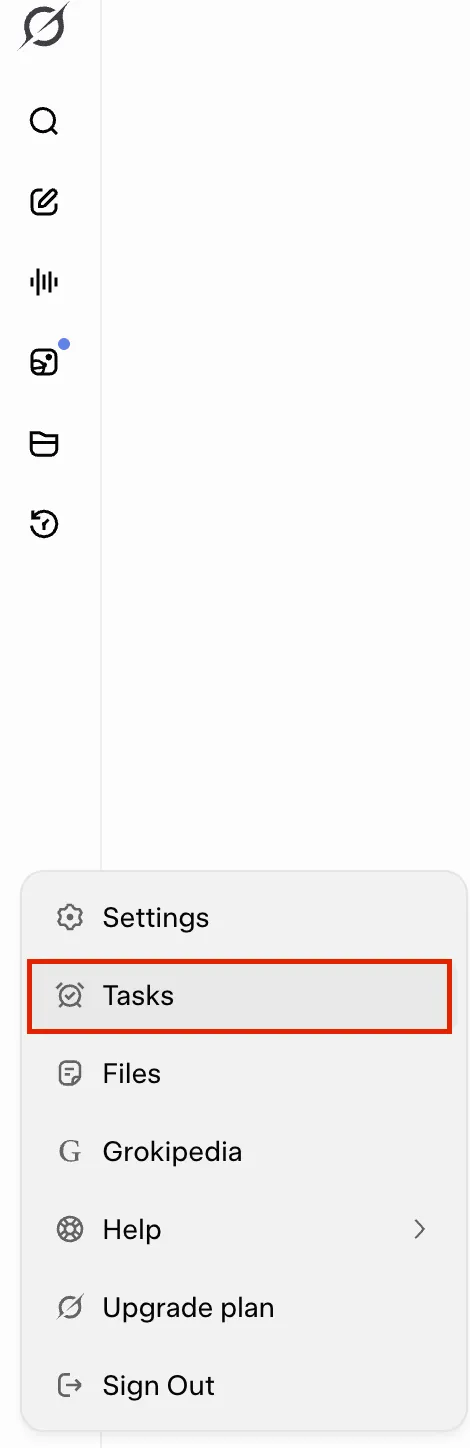
As of the Jul 2026 launch, the canonical entry point xAI points to is grok.com/automations.
https://grok.com/tasks still responds (HTTP 200 as of 2026-07-19), but prefer the Automations URL and whatever label your current client shows.
Creating a task (example: daily bathhouse / sauna news)
Example: “Every day, search for new sento, bath, and sauna openings in Japan and summarize them.”
The form labels below match the screenshots from the original write-up. Newer Automations UI may use slightly different wording.
- Name of task — give it a name
- Frequency — Once / Daily / Weekly / Monthly / Yearly (e.g. Daily); official docs also list Weekdays
- On → Time — e.g. 08:30 AM
- Instructions — what you want Grok to do
- Create Task (or the equivalent save action in Automations)
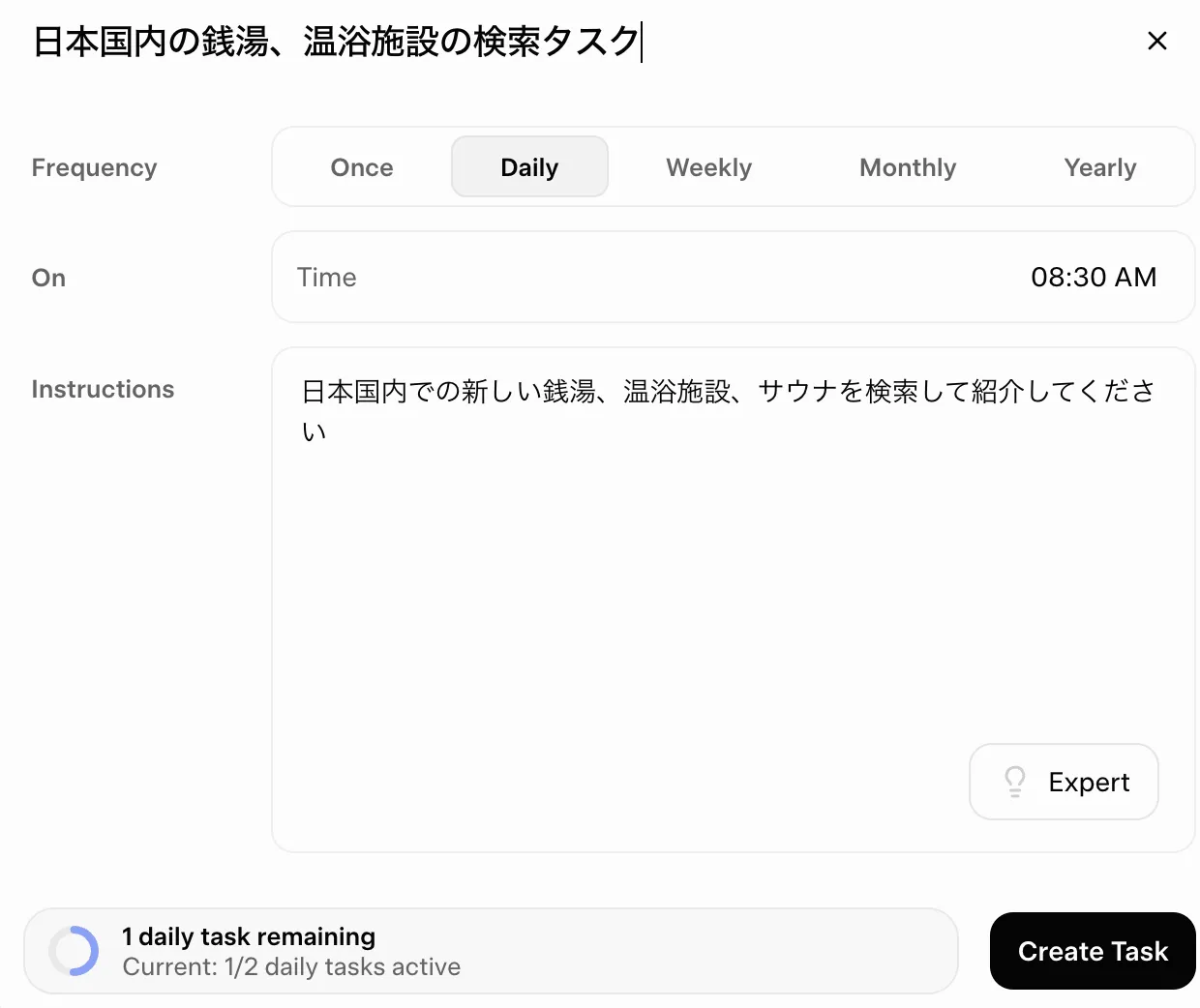
If you write something like “Search for new sento, spas, and saunas in Japan and introduce them,” Grok will run at that time and push results (depending on your notification settings).
For general news, swap the prompt to “Summarize today’s tech / industry / regional news for ___” — same mechanism.
Impressions (author experience)
These points are from using the feature for daily digests — not claims from xAI docs:
- Easy to build a habit (results arrive at a fixed time)
- Worth trying even if your plan shows a low daily quota
- Skim on a commute instead of running manual searches
Official links
Common questions
Can Grok Tasks run every day automatically?
Yes. Official schedules include Daily (and Weekdays). Pick a time in your timezone.
Is Grok Tasks only for news summaries?
No. Any repeated research or digest prompt works. Official docs also describe email-triggered automations on SuperGrok.
Where is Tasks in Grok?
Use grok.com/automations, or open the left sidebar and look for Tasks / Automations (labels can differ by app version). The screenshots in this post show the earlier Tasks menu placement.
That’s it.