Cursor’s official iOS app is out, so I tried it for real.
In Writing blog posts from your phone with Cursor, I covered a workflow where you hand tasks to Cursor through Slack.
This time, a native iOS app finally shipped, so I threw a few tasks at it from outside and wrote down what that felt like.
What you’ll learn
- A quick tour of the Cursor iOS app screens and what you can do there.
- How it compares to the Claude iOS app.
Referral links for Cursor and Claude are at the end for anyone curious.
Main screen
When you open the app, you land on a screen like this.
Connected repositories show up as a folder list, and you can add new ones with + in the top right.
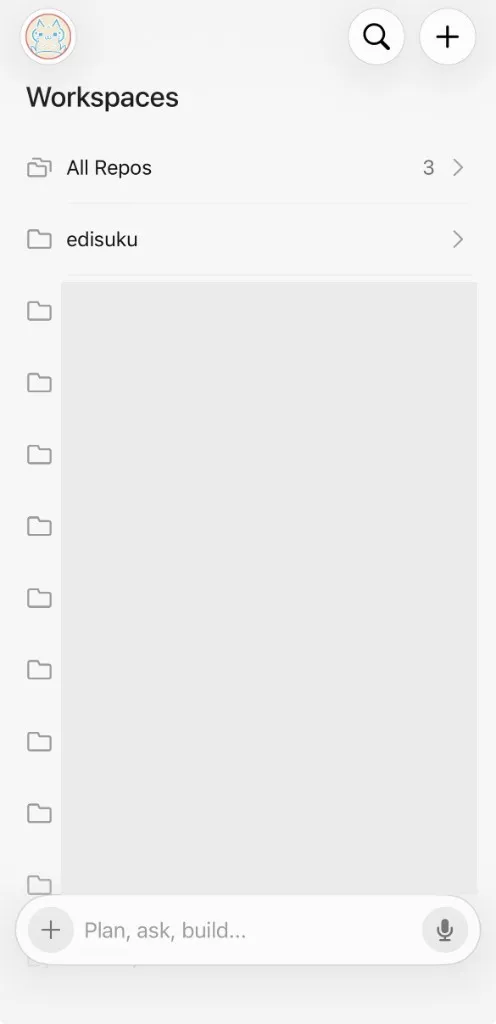
Repos I use every day — like edisuku — are right there.
From the prompt area at the bottom, you can pick a repo and branch, then launch an agent with Plan, ask, build…
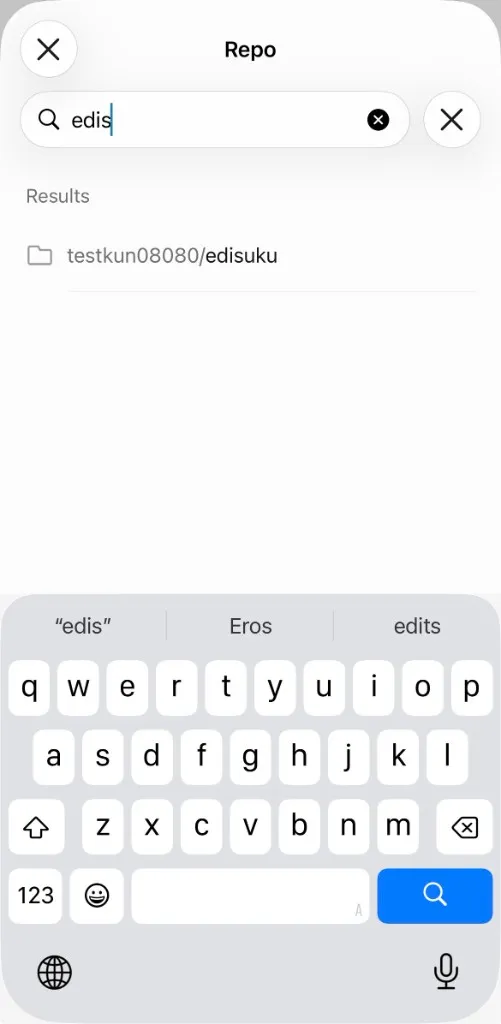
Tap + and you get a Repo search screen where you can find GitHub repositories by name and add them.
After you create a task
Open a repository and your recent tasks show up in chronological order.
Below is an example from edisuku, where I asked it to wire up e2e tests.
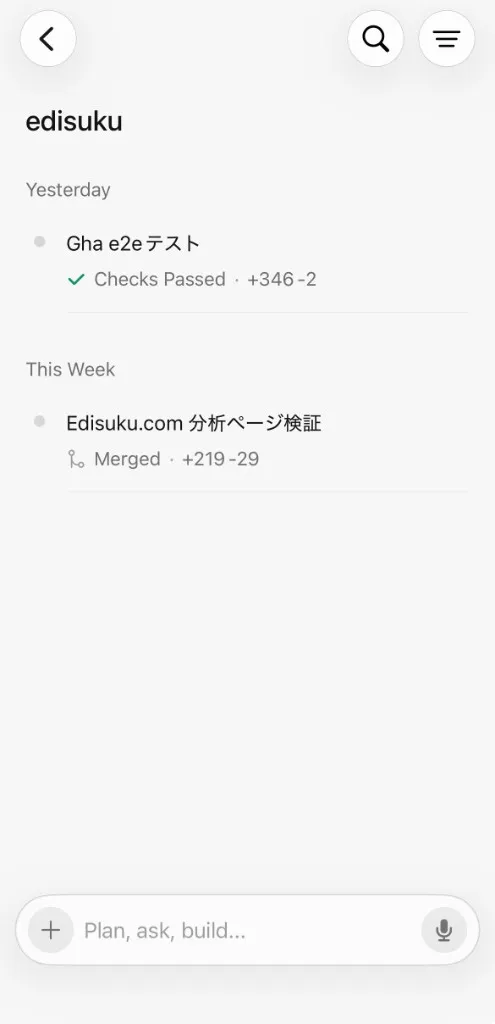
Just like on the main screen, you can throw a new task from the input bar at the bottom.
Task details
Tap a task in the activity feed and you get a summary of what the agent did.
For the e2e test task, for example, the summary explained renaming the script in e2e/package.json from test to test:e2e so it would not run under turbo test.
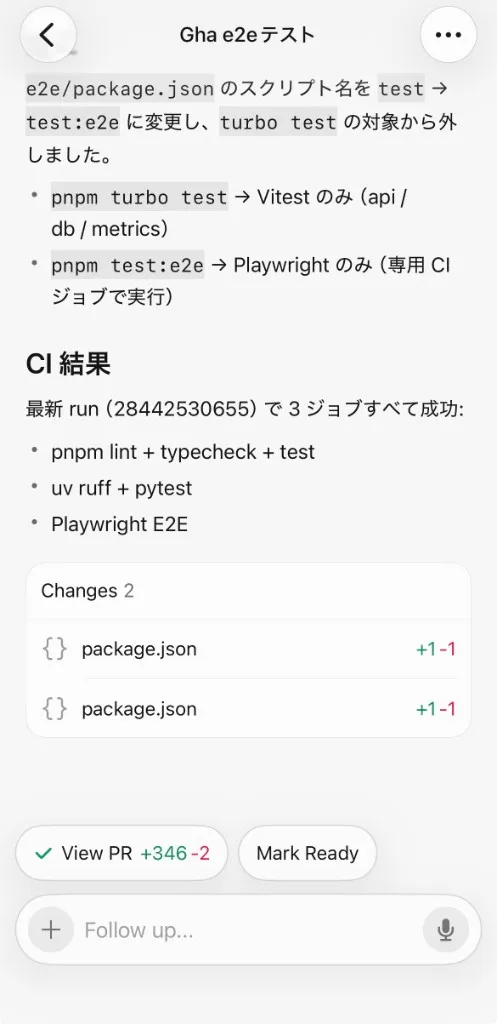
The top of the screen summarizes the e2e/package.json change and how turbo test behaves. Under CI results, the latest run (ID: 28442530655) shows all three jobs passing:
pnpm lint + typecheck + testuv ruff + pytestPlaywright E2E
View PR at the bottom takes you straight to the pull request, so you can follow the flow on your phone: run → pass → wait to merge. Mark Ready lets you move a draft PR to ready-for-review from here too.
Plan mode and context attachments
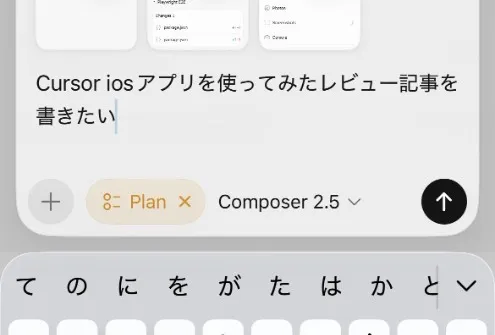
When starting a new task, you can choose Plan or Draft.
Tap + to open the Context menu and attach sources like these:
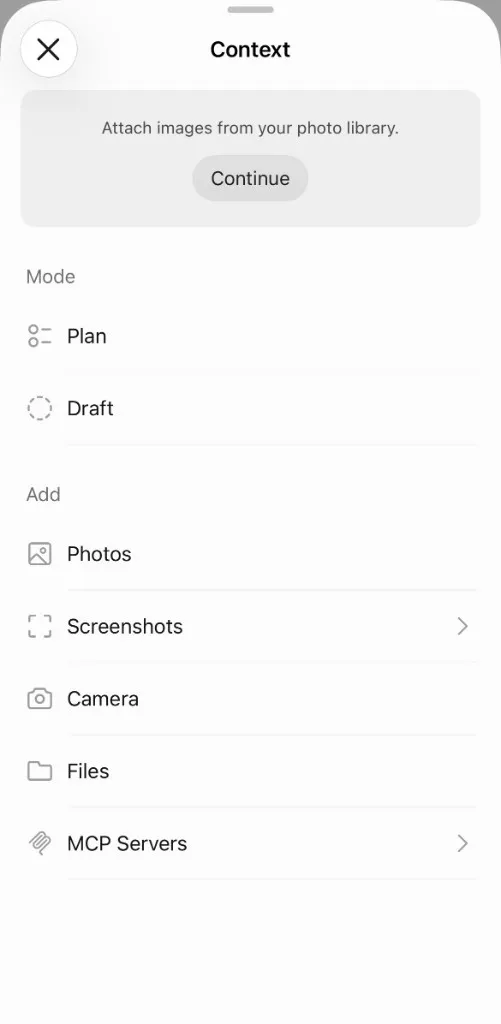
- Photos — images from your photo library
- Screenshots — screenshots on your device
- Camera — take a photo on the spot
- Files — files
- MCP Servers — MCP server connections
Plan confirms the approach before execution.
Draft is how I read it: leave a simple draft in place without pushing straight through.
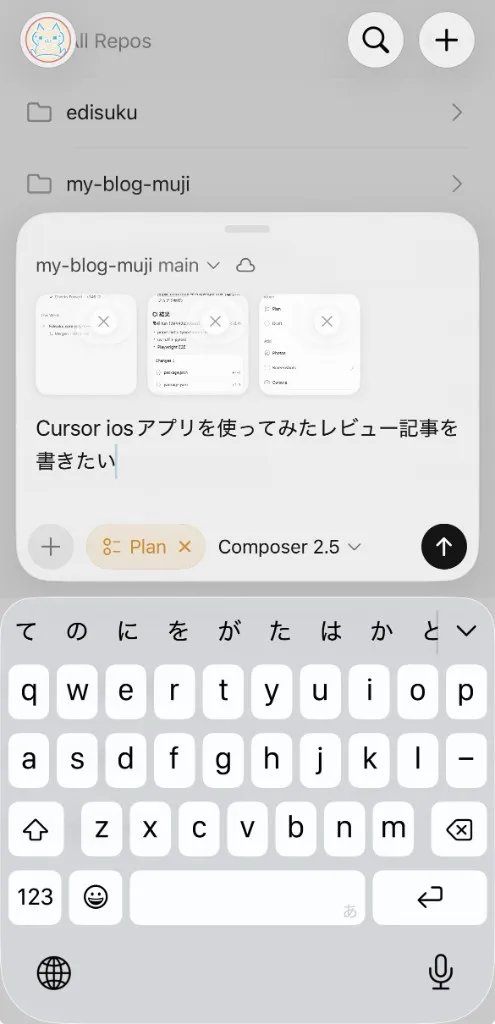
The outline for this article was also requested from the iOS app.
The quietly impressive part: Live Activity
Not the flashiest feature, but Live Activity is what quietly impressed me.
While the agent is running, a widget shows up on the lock screen.
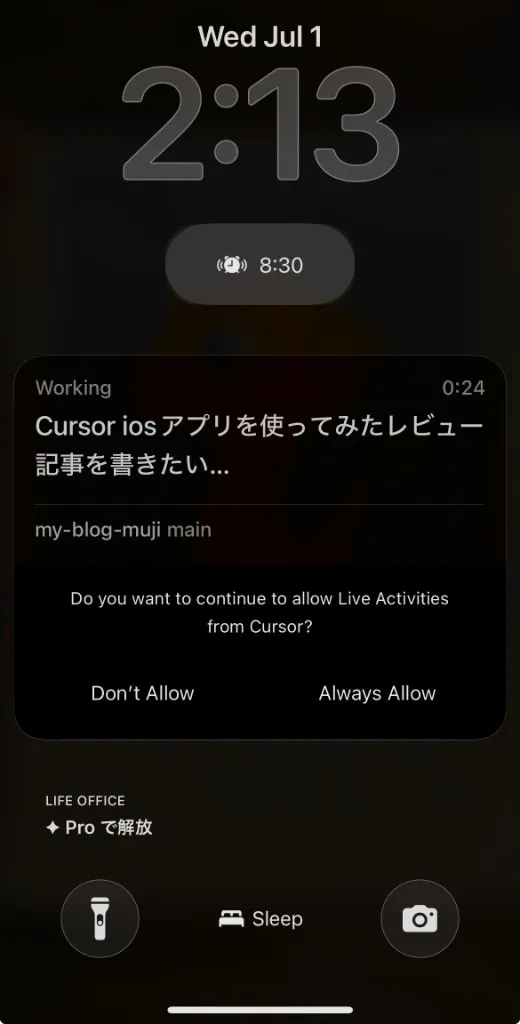
Roughly what you see:
- Working — the task is in progress
- Elapsed time (e.g. 0:24)
- The prompt you sent (“I want to write a review of the Cursor iOS app…”)
- Repository and branch (
my-blog-muji main)
The first time, iOS also asks Do you want to continue to allow Live Activities from Cursor? Choose Always Allow and you can track progress from the lock screen after that.
Cursor for iOS availability
As of July 18, 2026, the official announcement says Cursor for iOS is available in public beta on all paid plans.
Compared with the Claude iOS app
If the goal is throwing work at AI from your phone, the Claude iOS app lives in a similar space.
Both let you send a task while away and check the result later. But what each app optimizes for is quite different.
| Cursor iOS app | Claude iOS app | |
|---|---|---|
| Main use | Coding (cloud agent) | General chat + Claude Code + remote dispatch to Claude Desktop |
| UI center | Workspaces / repositories | Code, chat, planning, and more |
| Mobile-native UI | Live Activity (progress on the lock screen) | Push notifications, voice input, and similar |
| Strength | Task management per repository | Research, writing, brainstorming, and a wide range of uses |
Cursor iOS feels built around a repository-first development workflow — squarely for people who write code.
I use Claude too, but if I had to pick one as the “employee” I’d hire, it’d be Cursor. (I like both.)
The Claude iOS app feels easier as a conversation-first general assistant. Beyond coding, it handles research, writing, planning, and plenty else. Dispatch to Claude Desktop also has no official equivalent in Cursor.
My split: Claude for the main outline and bigger thinking, Cursor as sub-agents for smaller implementation tasks. My daily IDE is still Cursor.
Want to try Claude? Sign up via Claude (referral link).
Wrap-up
The Cursor iOS app is easy to use. If you’re already on Cursor, I’d install it.
If you also use the Slack workflow, this post pairs well with it:
- Writing blog posts from your phone with Cursor (Obsidian, Slack, Astro, Cloudflare Pages)
- Cursor 3: Agents Window and the April 2026 update
- Trying Grok Bot on iOS: Role-Based Bots and Group Chat (a different app from this repo-focused one — role-based bots and group chat)
New to Cursor? Try Cursor (50% off for a limited time) (referral link). For the Claude app, start at Claude (referral link).
That’s it for now.