Belated realization: you can also drive Comfy Cloud MCP from the Claude and Cursor iOS apps.
Cloud-side jobs need domain allowlisting and an API key, so I went ahead and set them up.
This is a short notes-style write-up for anyone thinking the same thing.
On my phone, I mainly wanted a way to spin up rough images or placeholder assets on the cloud before I sit down at a desk.
That use case alone made the setup worth it.
Related: Building a workflow on Comfy Cloud and running it via the API
Prerequisites
| Item | Notes |
|---|---|
| MCP URL | https://cloud.comfy.org/mcp |
| Auth | OAuth (auto-register) plus an x-api-key request header (I used both) |
| API key | comfyui-... from platform.comfy.org |
| Claude | An environment that supports connectors / custom MCP |
I already covered creating an API key in the API post.
Put the key in the connector header field — not in the chat.
Add a custom connector in Claude
Open Claude settings → Connectors → Mine.
Click + Add, then Add custom connector.

Name and URL
The name only shows up in the connector list, so anything clear is fine.
I used ComfyUI-cloud.
URL:
https://cloud.comfy.org/mcp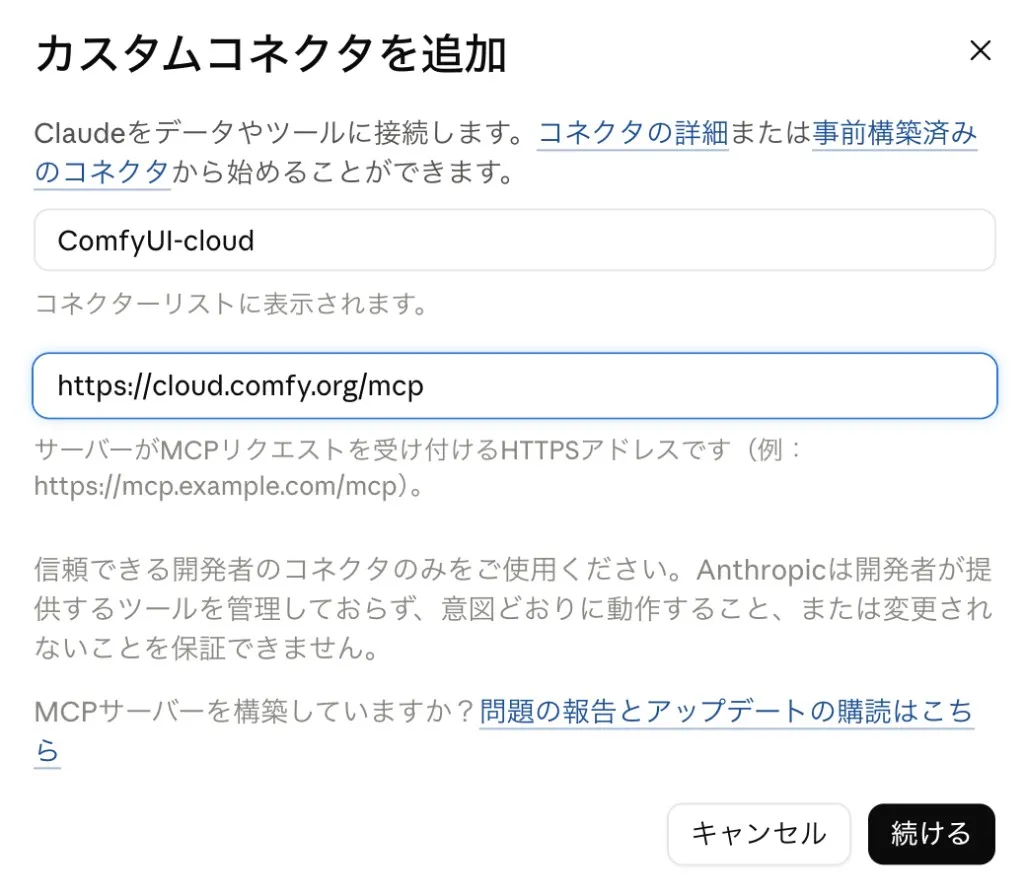
Hit Continue to get to the auth screen.
OAuth and request headers
Leave the OAuth client on Register automatically (Detected).
That matches the copy about Claude registering an OAuth client with the server.
Then add the API key under request headers:
| Key | Value | Required |
|---|---|---|
x-api-key | Your API key (comfyui-...) | On |
The UI notes that headers go out with every request alongside the OAuth bearer.
OAuth alone may be enough in some setups; I still added the key for cloud jobs.
I am not pasting a real key here.
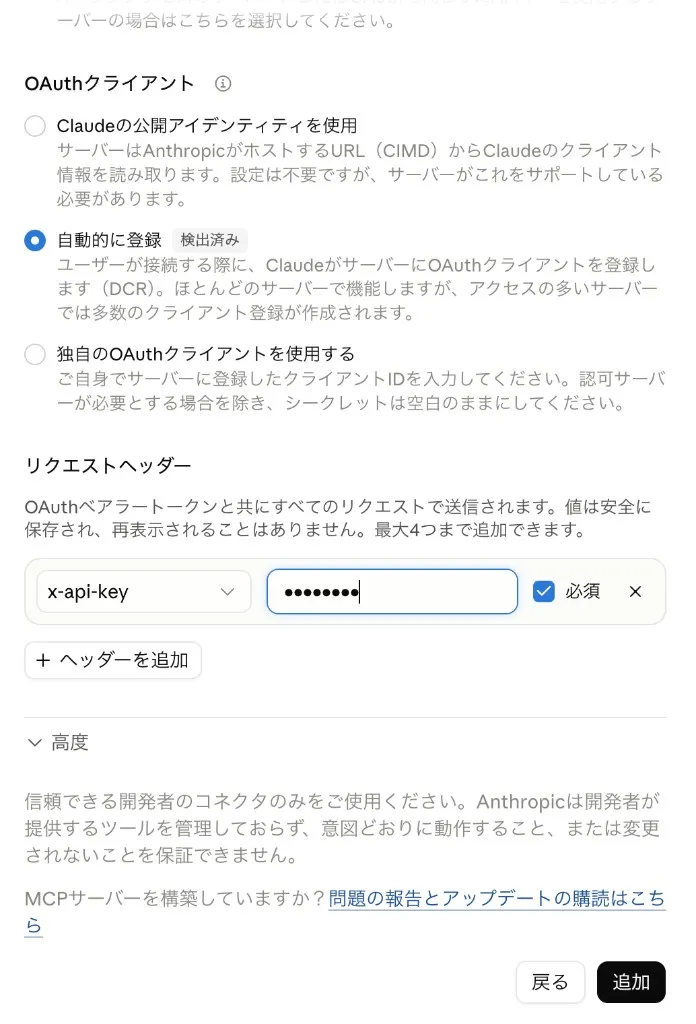
Click Add to save the connector.
Turn the connector on in chat
From the chat + menu, open Connectors and switch ComfyUI-cloud On.
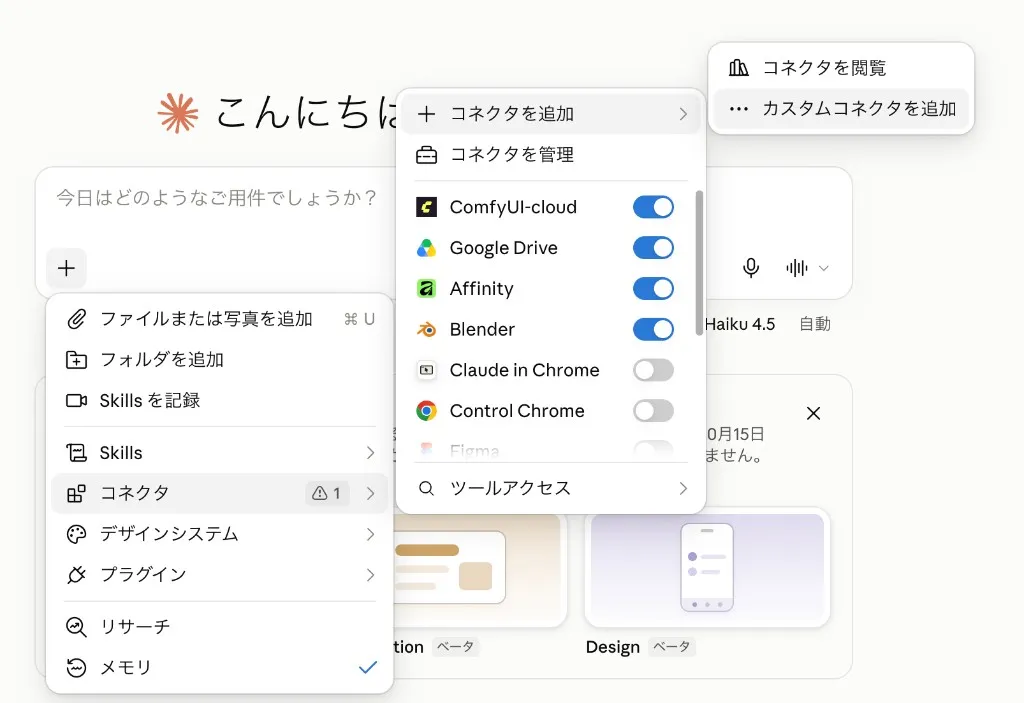
Once it is connected, the same connector works on desktop and in the iOS app.
Tossing a quick “generate a rough placeholder on the cloud” from outside was the sweet spot for me.
Cursor setup
In Cursor, add it from Plugins & MCPs.
Open settings, then Add → Custom MCP.
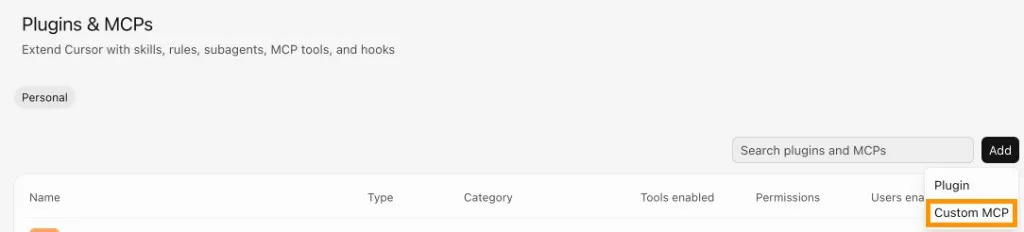
In the dialog, set Type to URL and fill in:
| Field | Value |
|---|---|
| Name | ComfyUI (any display name) |
| Server URL | https://cloud.comfy.org/mcp |
| HTTP headers | Key: X-API-Key / Value: your API key |
Client ID / Client Secret can stay empty.
Hit Save.
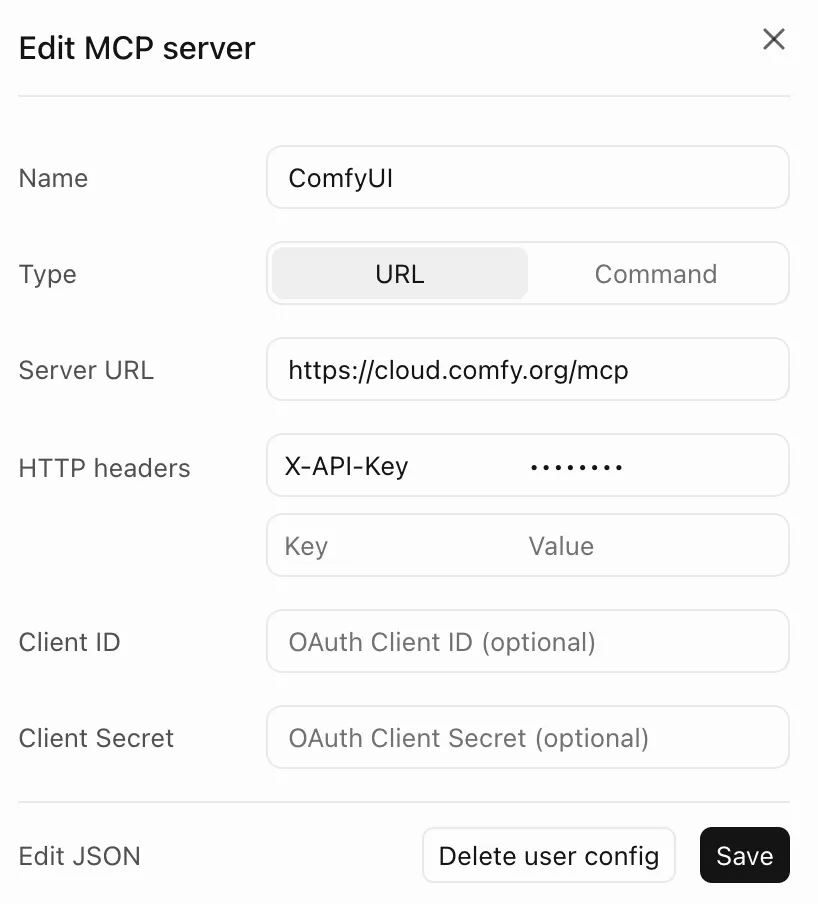
Same URL and key as Claude, so one key covers both.
If your Cursor iOS build can use that MCP, it points at the same endpoint.
Rough assets from your phone
Claude uses a custom connector; Cursor uses Custom MCP.
Both hit https://cloud.comfy.org/mcp with x-api-key (Cursor labels it X-API-Key).
If you want to kick off placeholder assets from your phone, this is the setup that made that easy for me.