I’m building an app called Draft (下書き). It’s for people who want a quick mockup of an article so they can get into the habit of writing.
My second app after LIFE OFFICE
I recently shipped my first iOS app, LIFE OFFICE.
It’s a clock-in app I made to fix my own freelance laziness. I wrote up the whole path from idea to release in this post.
Draft is the next one I’m working on.
Same as LIFE OFFICE, it’s built with Expo.
It hasn’t gone to App Review yet, so read this as a work-in-progress.
It’s gotten easy to throw apps together.
I wouldn’t be surprised if people are already making study apps or personal tools in Google Studio and the like.
I’m mainly using Claude and Cursor.
Lately I’ve also been pulling ComfyUI into UI work and asset generation.
I wrote more about how I split those tools in How a technical artist uses AI tools and Why I use both Cursor and Claude Code.
I still need a draft before I can write
Anyway, here’s the actual point of this post.
You need a draft before you can write an article, right?
(I do, anyway.)
I think “maybe I should write something,” then put it off because it feels like a hassle…
Draft is the app I started making for that lazy version of myself.
What it is
So, what is it.
You start from photos — things you shot, screenshots, whatever.
You swipe through them, leave voice memos, then turn that into Markdown.
That’s it.
It’s pretty simple. I’m not chasing a polished article.
The idea is: skip the typing, add memos onto photos from your own experience, and get a draft out of it.
A screenshot is faster than explaining it in words.
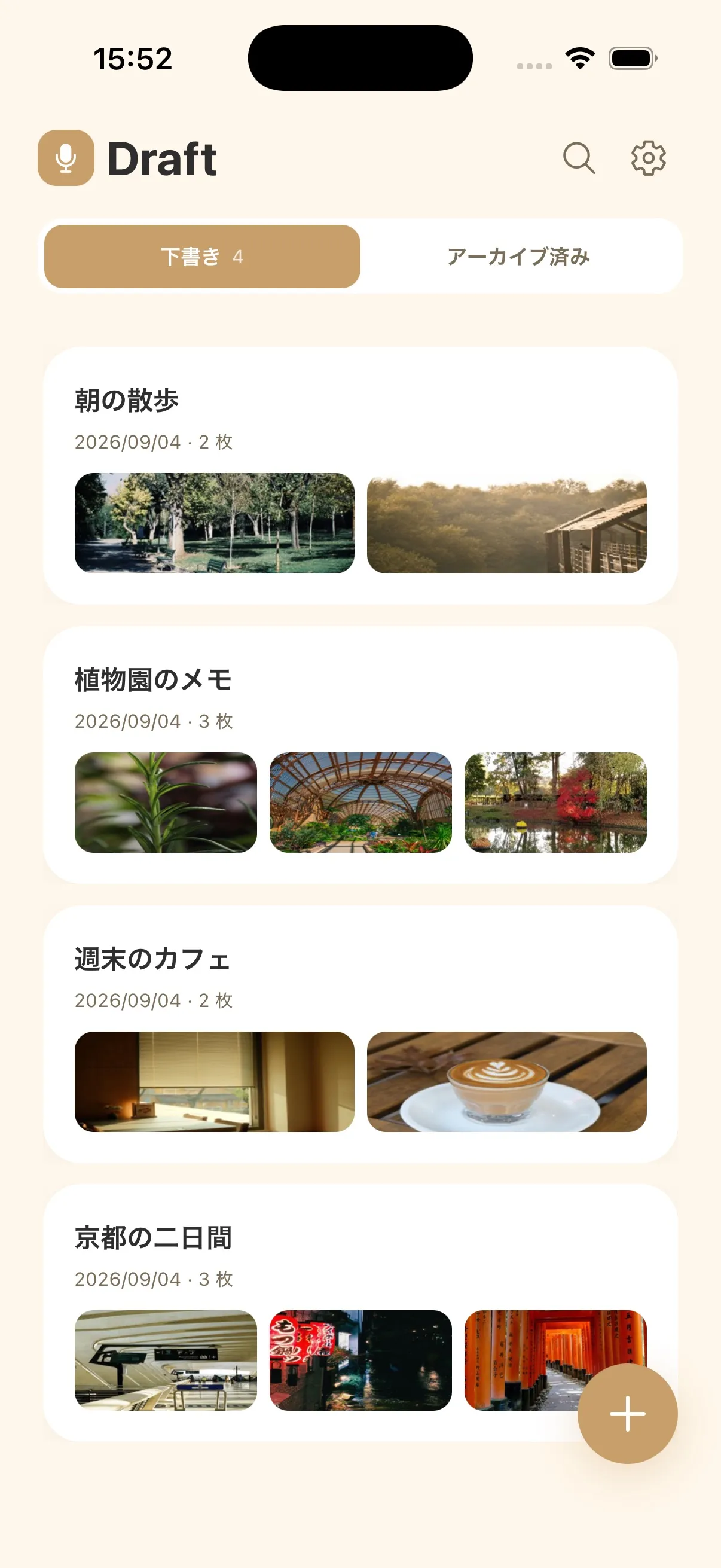
Start by picking photos
The first step is picking the photos for the article.
(If people start asking for a no-photo flow, I’ll probably add that.)
The order you pick them in the camera roll becomes the flow of the article.
You can add or drop photos later from the gallery button, so you don’t have to get the set perfect on the first try.
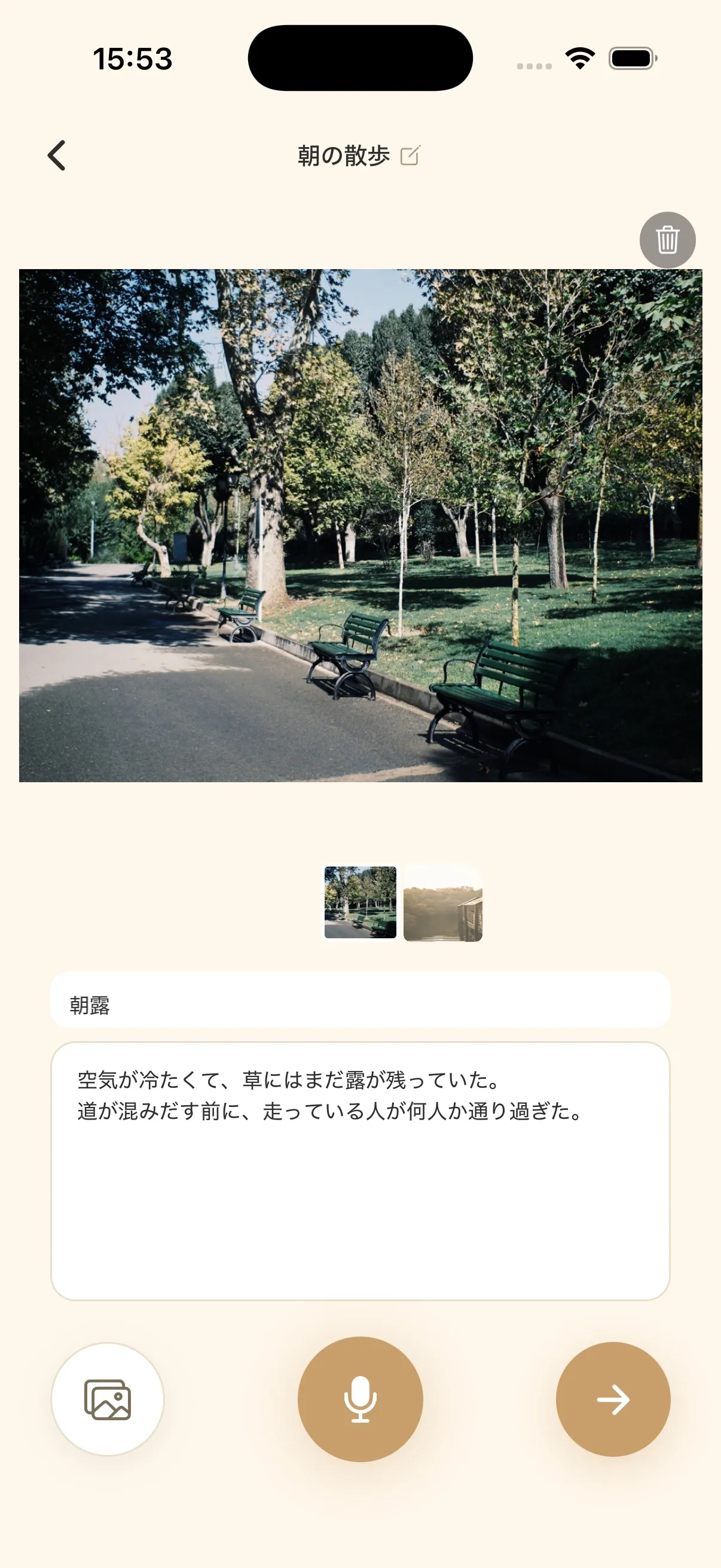
Swipe through photos while you record
This is the part I most wanted to build.
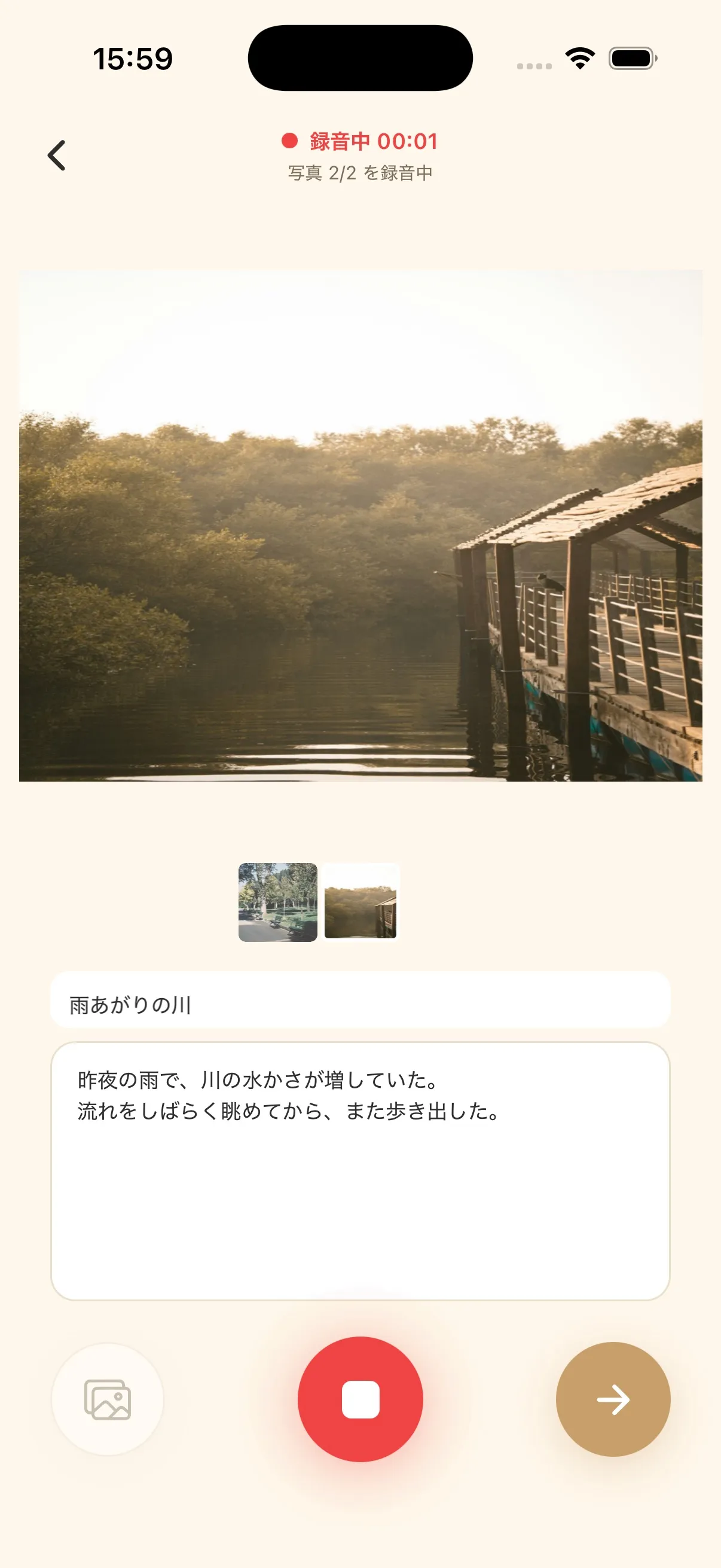
Keep recording, swipe sideways, and what you say is filed under the photo you were looking at.
Look at a “morning dew” photo and say “the air was cold, and there was still dew on the grass” — that becomes the memo for that photo.
There’s still a keyboard for when talking is awkward.
Recording itself is one continuous take with expo-audio.
After you stop, iOS 26’s SpeechTranscriber transcribes it on-device and splits the words onto photos using the swipe timestamps.
The audio never leaves the phone.
For the title and outline instructions, a different screen uses live input from expo-speech-recognition.
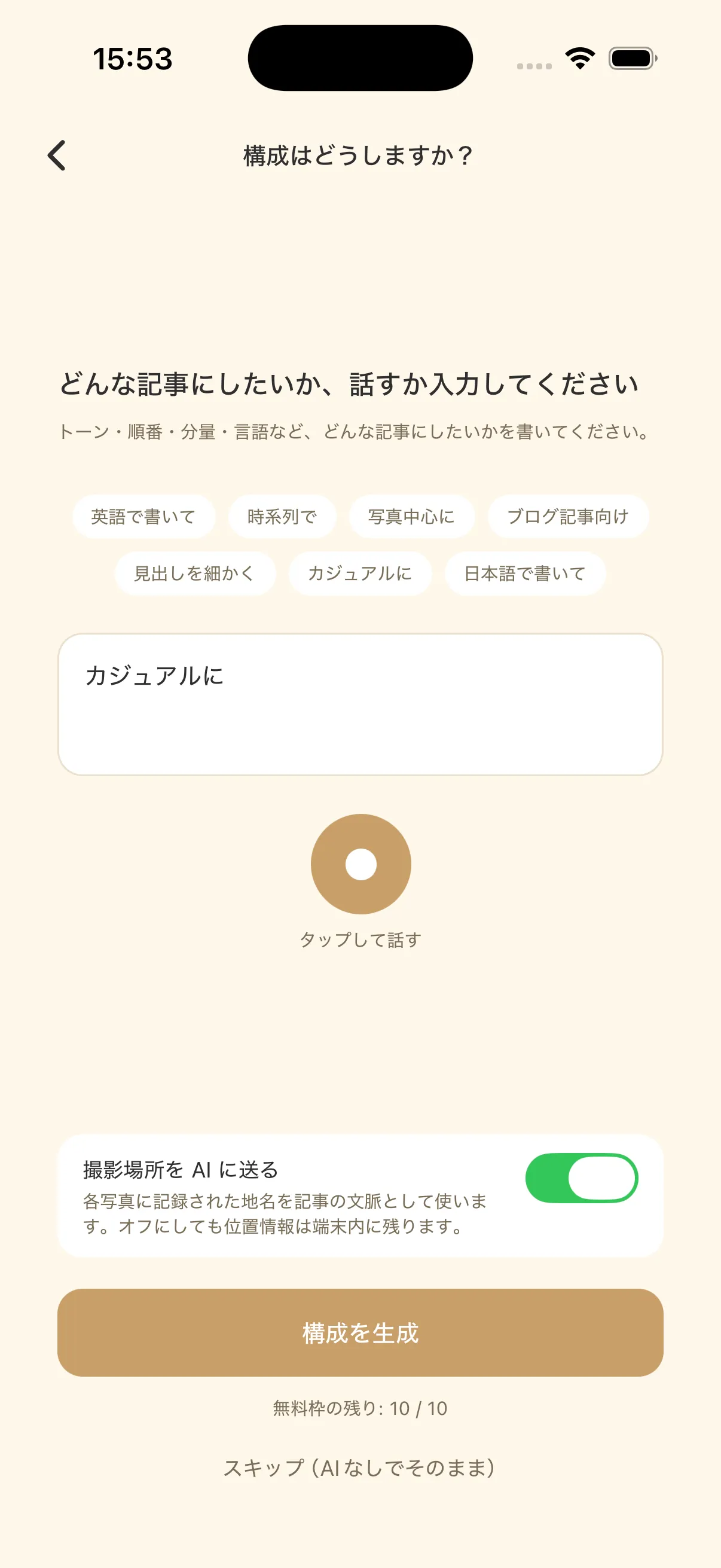
AI puts the outline together
Once the photos and memos are in, you ask AI to structure it.
Say or type something like “make it read like a travel diary,” and it comes back with a headed outline.
The free plan includes 10 runs in total, so you can throw it a few times and redo it.
You can also choose whether to send location.
The outline isn’t generated on the device.
Memo text plus photo title, capture time, and optional place name go through Cloudflare Workers to Groq, and openai/gpt-oss-120b builds the outline.
Photo files themselves are not sent.
There’s a skip if you want to continue without AI.
Reorder, then export
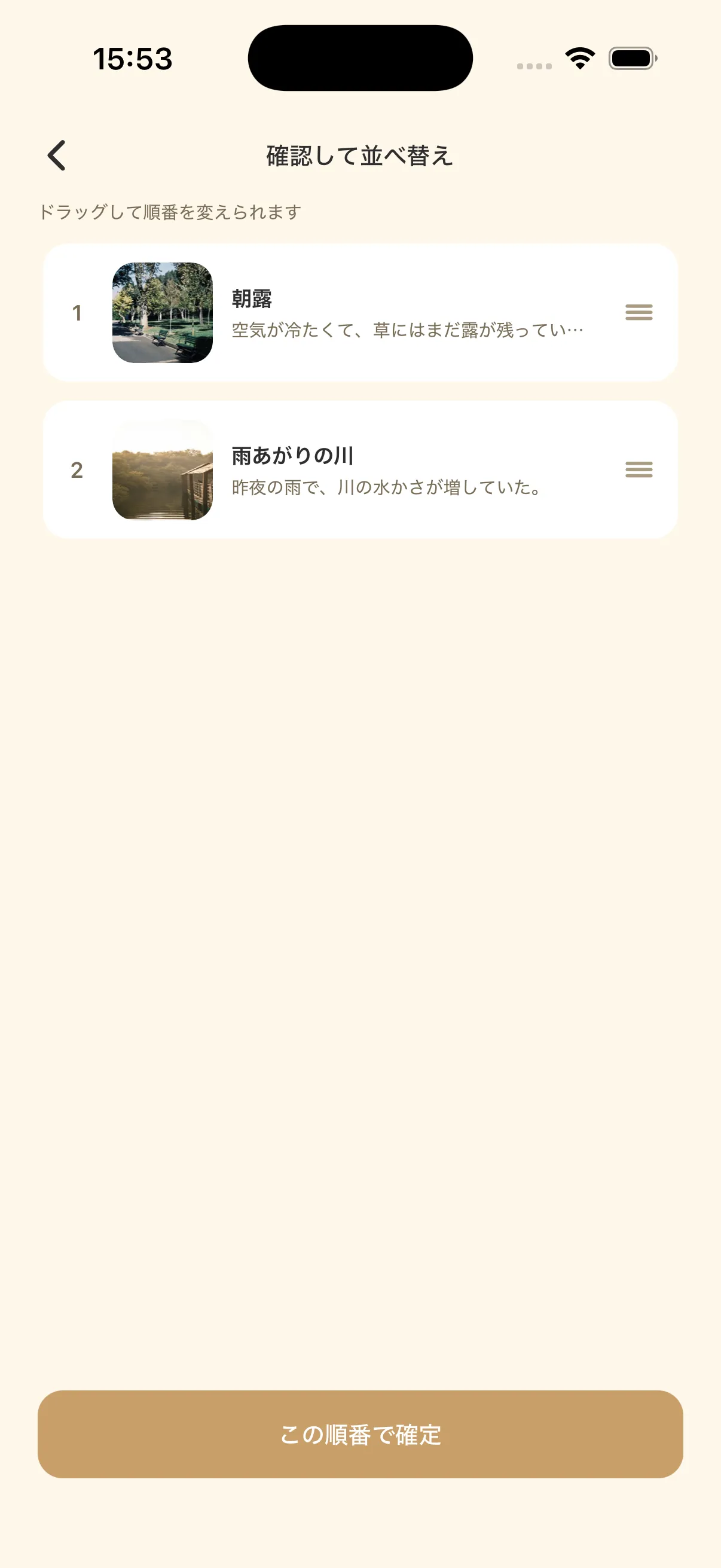
Last step: check the proposed outline, reorder it, and export.
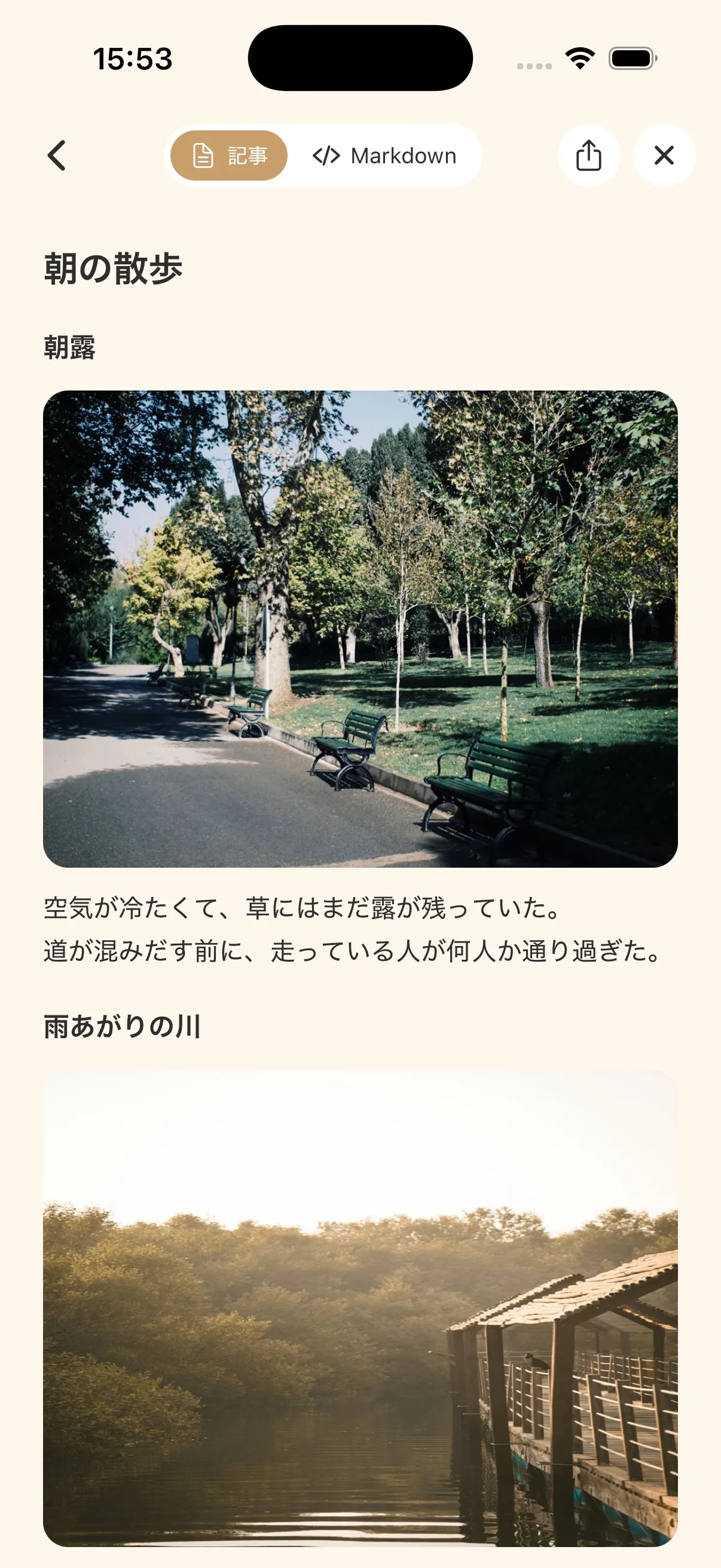
You can drag the heading cards around and compare the article view with Markdown.
Export covers Markdown, HTML with images, and ZIP.
That’s as far as it is right now
I originally aimed for zero typing.
Once I used it, there were moments I still wanted to type the title or outline instructions, so typing stayed.
Export already does Markdown, HTML, and ZIP.
For AI outline generation, I’m planning to keep a few free tries, including rewarded video.
Those terms may still change before App Review.
I’m working on the app and the App Store submission in parallel, so I’ll write again if it ships.
There’s a product page already, with the tagline and a short overview for now.


If you’re also the kind of person who can’t start writing without a draft, and you want to make one the moment the idea shows up — this is for you.
Links
- Draft product page
- I Built and Shipped an iOS App Solo to Fix My Own Freelance Laziness — LIFE OFFICE
- Trying Grok Bot on iOS: Role-Based Bots and Group Chat
- How a technical artist uses AI tools — from research to image, video, and coding
- Why I use both Cursor and Claude Code: a practical comparison
- Vibe coding: three shipped projects as a web beginner