I wanted to build my own version of Grok’s Automations, and that’s what started this.
I previously wrote about how to use Grok’s tasks in this post.
It’s been renamed to Automations now, lol.
Automations is a feature where you set a schedule and what you want to look up or do, and it reports back to you periodically.
When you’re following all sorts of news, instead of asking AI yourself every time, it runs AI searches on a schedule and reports to you.
ChatGPT and Claude have similar features too.
But they require a paid plan, which quietly adds up.
I’d been wanting to build an app specialized for news and research, as cheaply as possible, at a level I’d be happy with.
Honestly, even people around me don’t know this kind of feature exists, so I’d like to offer an app that’s easy to understand for them too.
Third App After LIFE OFFICE and Shitagaki
As app projects go, this is my third, after LIFE OFFICE, which I built to fix my freelance laziness and Shitagaki, a draft app where you just talk while looking at photos.
This time again it’s Expo, with Cloudflare Workers (Hono) on the backend.
Update (2026-09-27): I originally wrote this post during development, but it passed review and is now released on the App Store. I’ve left the content below as it was during development, and added a post-release update at the end.
So now, let’s go through what’s inside Watcher, feature by feature.
1. First, Register Topics in the Watchlist
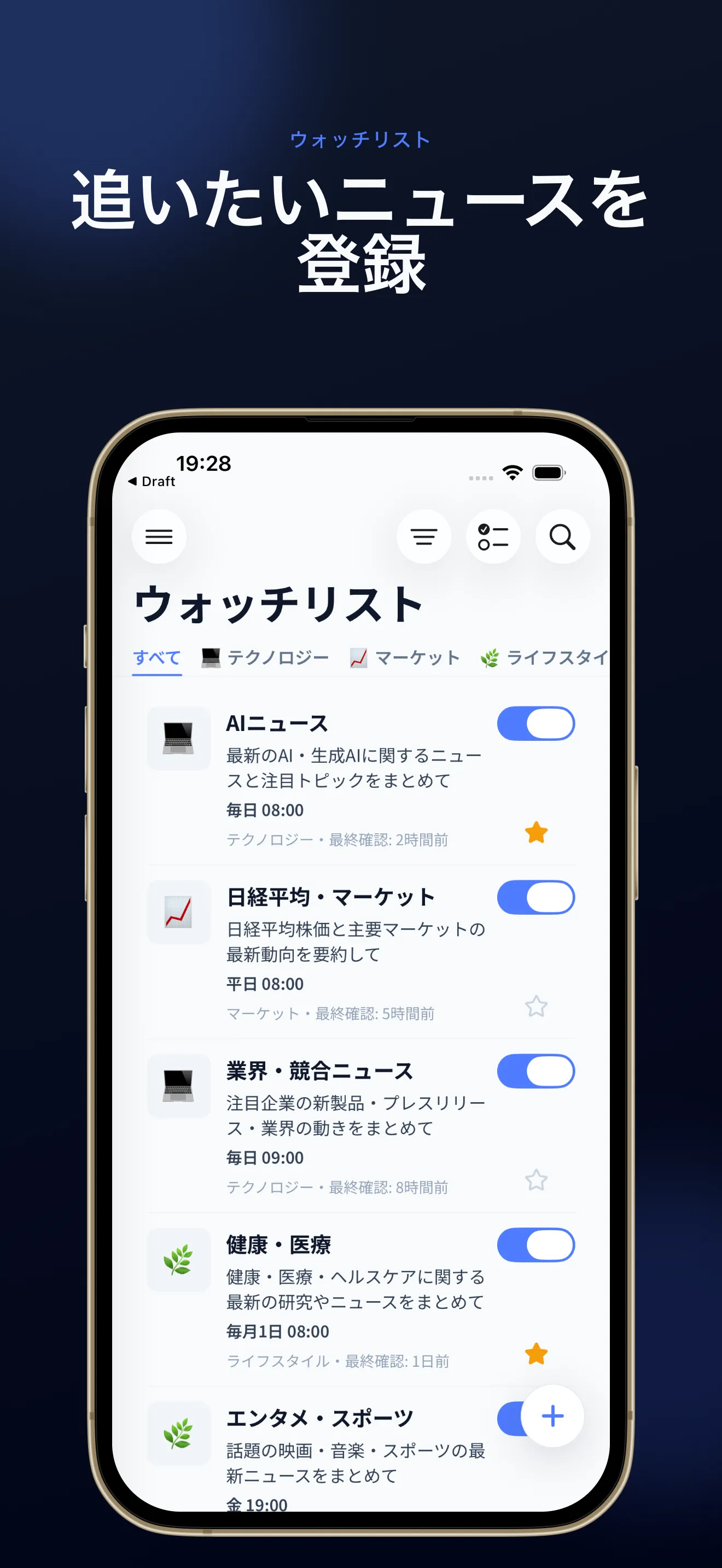
The first thing you do is register the topics you want to follow in the watchlist.
You name a topic and pick how often and when it runs.
You can choose like “daily at 8:00,” “weekdays at 8:00,” “1st of every month at 8:00,” or “every Friday at 19:00,” the same feel as Automations’ frequency settings.
If you tag a category, it’s easier to filter the list later.
You can also toggle a favorite star and turn monitoring on or off from here.
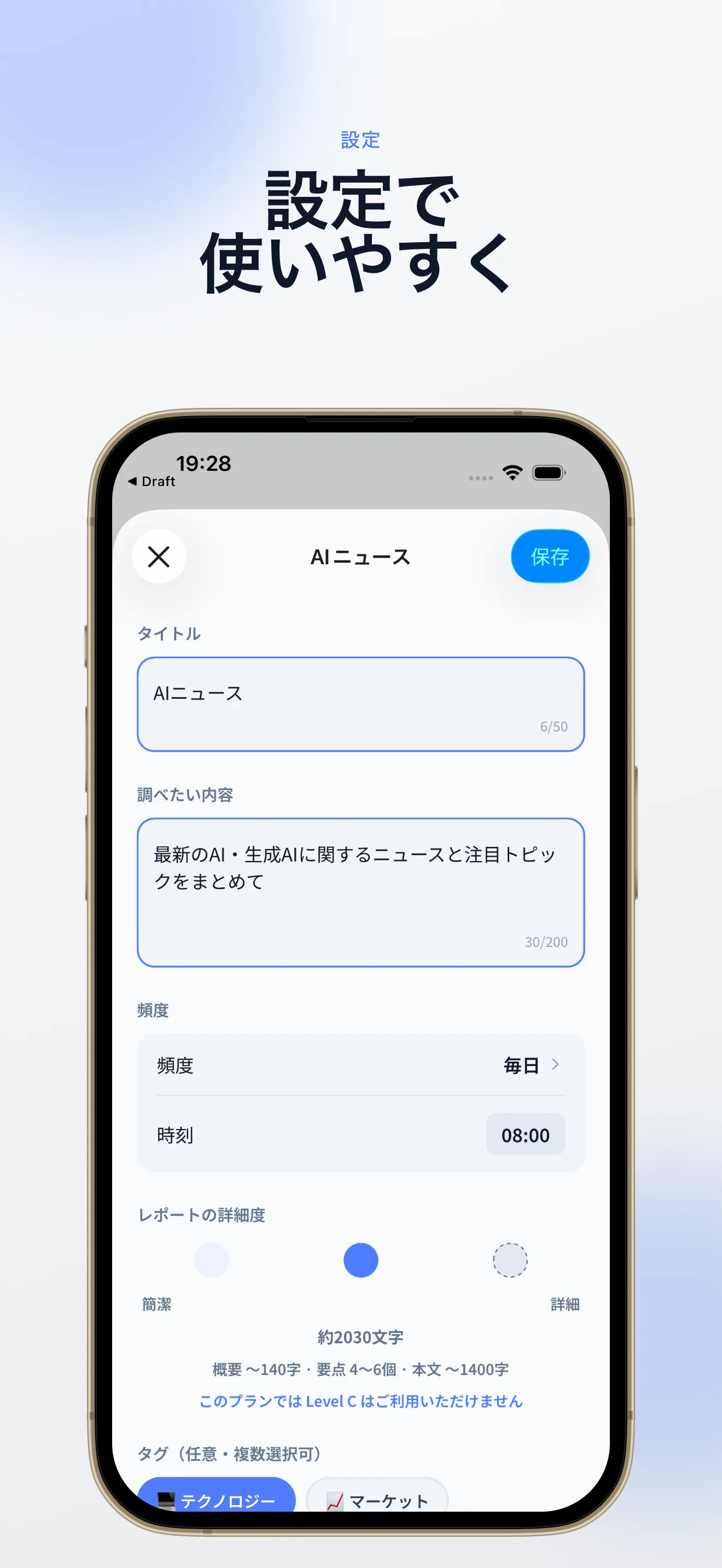
On the edit screen, you can also write the prompt for what you want to look up.
You can also choose the level of detail for the report.
It’s a slider from concise to detailed, and behind the scenes it’s split into Level A / B / C.
The depth of research changes, so you can adjust it to the granularity you want.
Level C is for Pro.
There’s no limit on how many topics you can register.
Feel free to split things up as finely as you like.
2. AI Automatically Researches and Builds Reports on Your Schedule
This is the part that’s the same as Automations, and the part I most wanted to build.
A Cloudflare Workers cron runs every minute, and when it finds a watch whose run time has come, it searches with Tavily and has a Groq LLM put together a report.
Instead of going to ask AI yourself, it goes out and researches at the time you set.
Honestly, people who are strong in this area can build it easily themselves these days, but I think connecting all the pieces is a hassle.
I’d like an app like this to absorb that.
If notifications are on, you also get a push notification when a report is ready.
The idea of “asking AI to research on a regular basis” is something I’d been thinking about ever since I wrote the post on stock research with NotebookLM and Grok tasks (Japanese).
3. New Reports Line Up on Home
When a report is ready, it appears on the Home tab.
Cards are split by topic, and I made it easy to see at a glance when each report was made, like “2 hours ago” or “5 hours ago.”
At the top there’s an “All” / “Unread” toggle, so you can quickly narrow down to unread only.
Search and filters are available from here too.
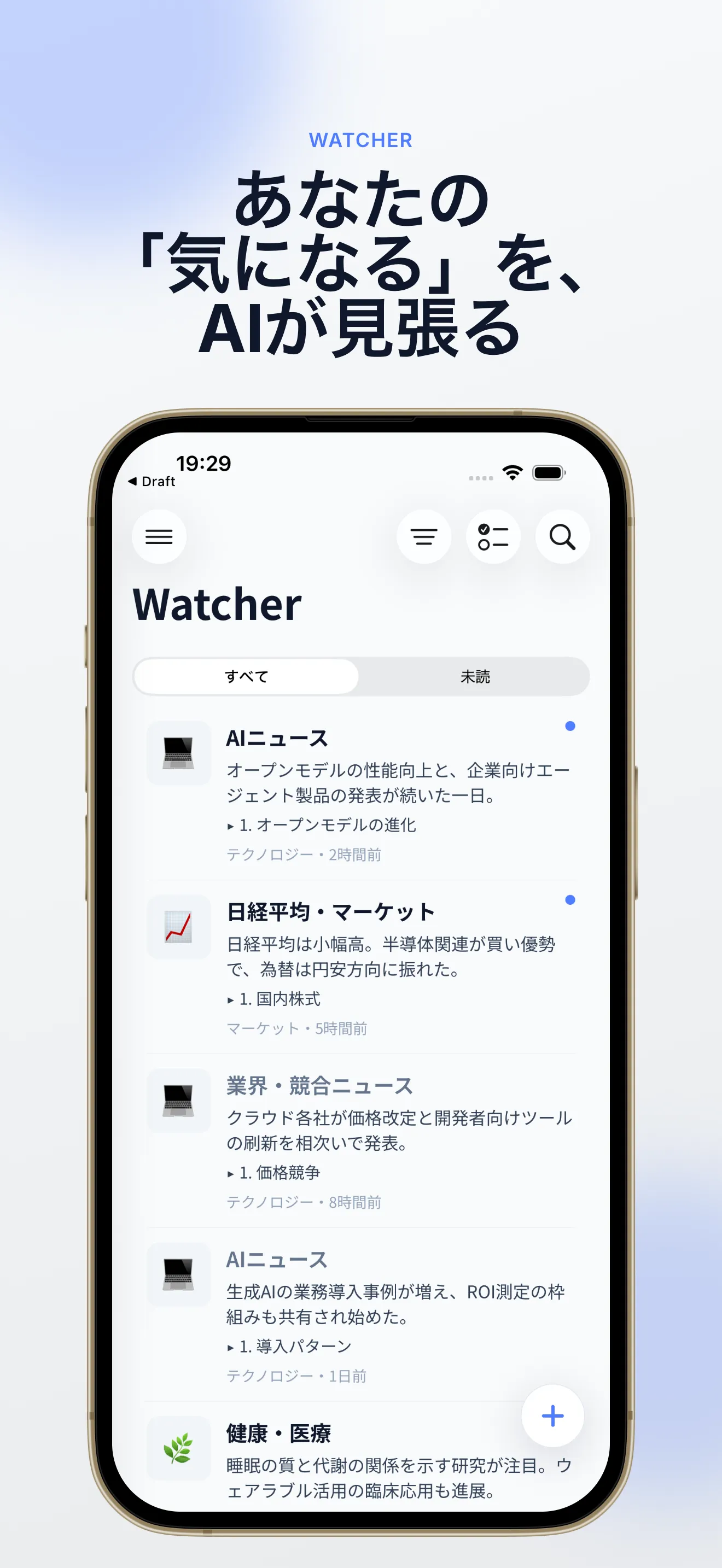
Cards with new reports get a blue dot as an unread marker.
I’m picturing you glancing at just these dots during a commute or in a spare moment, and opening whatever catches your eye.
4. Check the AI Summary and Sources in Report Detail
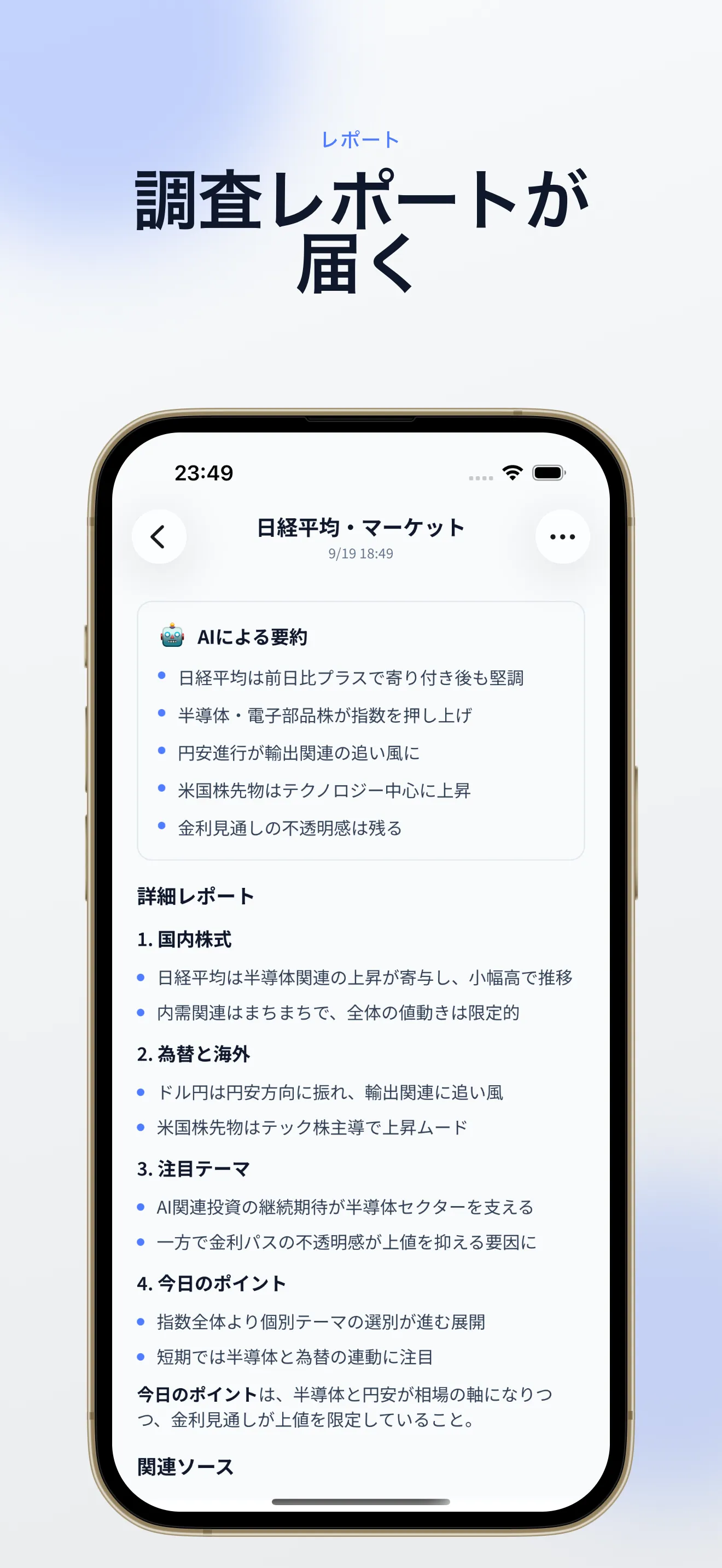
Tap a card and you go into the report detail.
At the top is an AI summary, so you can quickly read just the key points.
Below it comes the detailed report, and further down are links to related sources.
If something catches your interest, you can jump to the original article.
5. With Pro, It Also Arrives by Email
So you can keep up without opening the app, Pro also offers email delivery of reports.
The summary and an entry point to the details land in your inbox, so even if you miss a notification, it’s easy to catch up later.
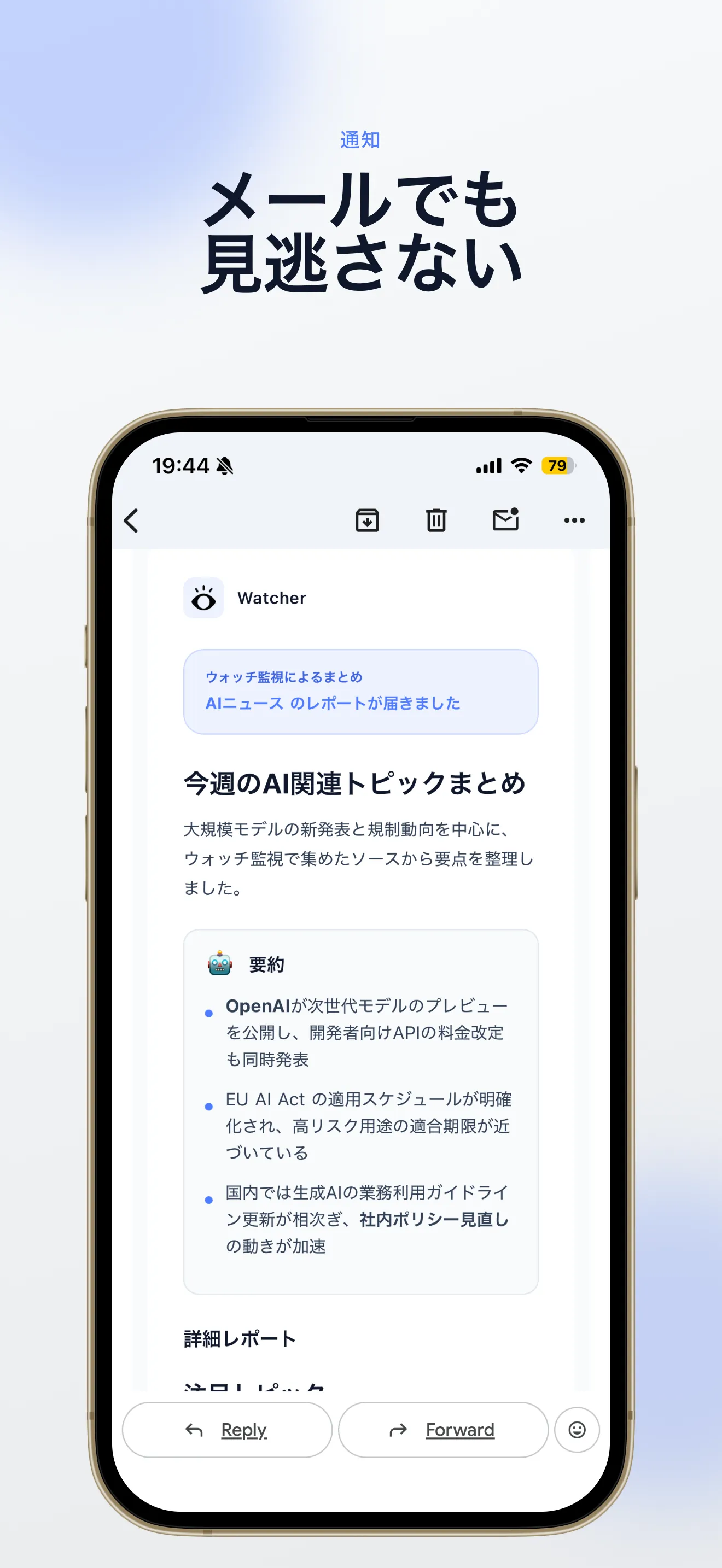
Export (Markdown / PDF) is also for Pro.
I’m still polishing this part as I use it, but “don’t miss it even in email” was a feature I wanted myself.
6. The Free Trial and Pricing Plans
The “as cheap as possible” from the beginning is reflected directly in the pricing plans.
First, there’s a “Trial” you can use without paying.
With “Research now,” you can try up to 5 items.
You can save topics, but scheduled monitoring doesn’t run here — still, if you want to just get a feel for it, please give it a try.
If you want to keep using it, there’s also a free trial, so you can sign up for a subscription first and try again during the free period.
It’s about 1 week free on monthly, and 1 month free on yearly.
Paid plans are Standard at ¥980/month (¥9,800/year) and Pro at ¥1,500/month (¥15,000/year).
Yearly works out to about 17% off.
Honestly, I don’t know if this pricing is right 💦
I don’t know if I can keep it cheap, but depending on the actual costs, I may raise it.
Still, at the current price, I think it comes out cheaper than subscribing to a paid ChatGPT or Claude plan, since it’s focused only on watching news and research.
Released on the App Store
It passed review and is now released on the App Store.
The features described above are working almost exactly the same at release.
As with my usual development, I worked with Claude and Cursor.
I wrote about how I split them up in AI Tools a Technical Artist Actually Uses too, so have a look if you like.
If you’re tired of asking AI yourself every time for news or research, please give it a try.
For Developers: The Tech Stack, Roughly
From here on, for developers, I’ll roughly write out what’s inside.
The app side is Expo (SDK 57) + Expo Router + React Native.
Auth is Apple/Google sign-in through Clerk, billing and subscriptions are RevenueCat, local storage is Expo SQLite, and push notifications go out through Expo Push.
The API is Hono on Cloudflare Workers.
The DB is Cloudflare D1, and the report-quota counter also lives in D1.
Cloudflare KV is used for rate limiting and search caching.
The automatic research in step 2 works like this: the Workers cron runs every minute, picks up watches whose run time has come, searches with Tavily, and has a Groq LLM assemble the report.
Pro’s email delivery goes through Resend.
For deployment, the API goes to Cloudflare Workers with wrangler deploy, and the app is built with EAS Build.
App Store submission also went through EAS Submit.
Related Links
- Support
- Privacy Policy
- Terms of Use
- Grok’s Task Feature Is Handy: Getting Daily News Summarized and Pushed to You on a Schedule
- I Built and Shipped an iOS App Solo to Fix My Own Freelance Laziness — LIFE OFFICE
- Building “Shitagaki,” a Draft App Where You Just Talk While Looking at Photos, to Build a Writing Habit
- Finding Stock Leads from National Policy and the “Honebuto” Guidelines: NotebookLM for Primary Sources, Grok Tasks for Daily Watching (Japanese)
- AI Tools a Technical Artist Actually Uses