This post is my phone → Cursor → PR → Cloudflare Pages workflow for this Astro blog — not a full Slack admin guide.
Official Slack / Cloud Agent facts below were re-checked on 2026-07-19. Everything under “My workflow” is what I do on iPhone, including limits I hit.
Why I tried it
I had stacks of travel notes and rough memos and wanted to turn them into real posts on the site.
You might find this useful if you
- Publish posts with Astro
- Want to drive Cursor cloud agents from your phone (via Slack or similar)
Official facts (Slack + Cloud Agents)
Sources accessed 2026-07-19: Slack integration, Cloud Agents, third-party integrations help.
Provisioning (official)
- From the Slack docs: open Cursor’s integrations UI and Connect Slack (dashboard route requires login).
- Install the Cursor app in your Slack workspace.
- Finish setup in Cursor: connect a repository provider, pick a default repository, enable usage-based pricing, confirm privacy settings.
- Mention
@Cursor(docs also write@cursor) with a prompt to start a Cloud Agent.
Commands I care about for this workflow (full list: @Cursor help in Slack):
| Command | Official meaning |
|---|---|
@Cursor [prompt] | Start a Cloud Agent; in a thread that already has your agent, adds follow-up |
@Cursor settings | Configure defaults (and channel default repository where available) |
@Cursor agent [prompt] | Force a new agent in a thread |
| Inline options | e.g. repo=…, branch=…, model=…, autopr=false |
Constraints from docs (not my invention)
- Cloud Agents need a paid Cursor plan and a connected Git host with read-write access (Cloud Agents troubleshooting).
- Privacy Mode (Legacy) is not supported for Cloud Agents; temporary code storage is required while they run.
- Channel-level defaults via
@Cursor settingsapply to public channels and are described as per team overrides of personal defaults.
I did not re-verify every billing line item or Enterprise-only channel behavior for this rewrite — treat the linked docs as source of truth if your plan differs.
Context (this site)
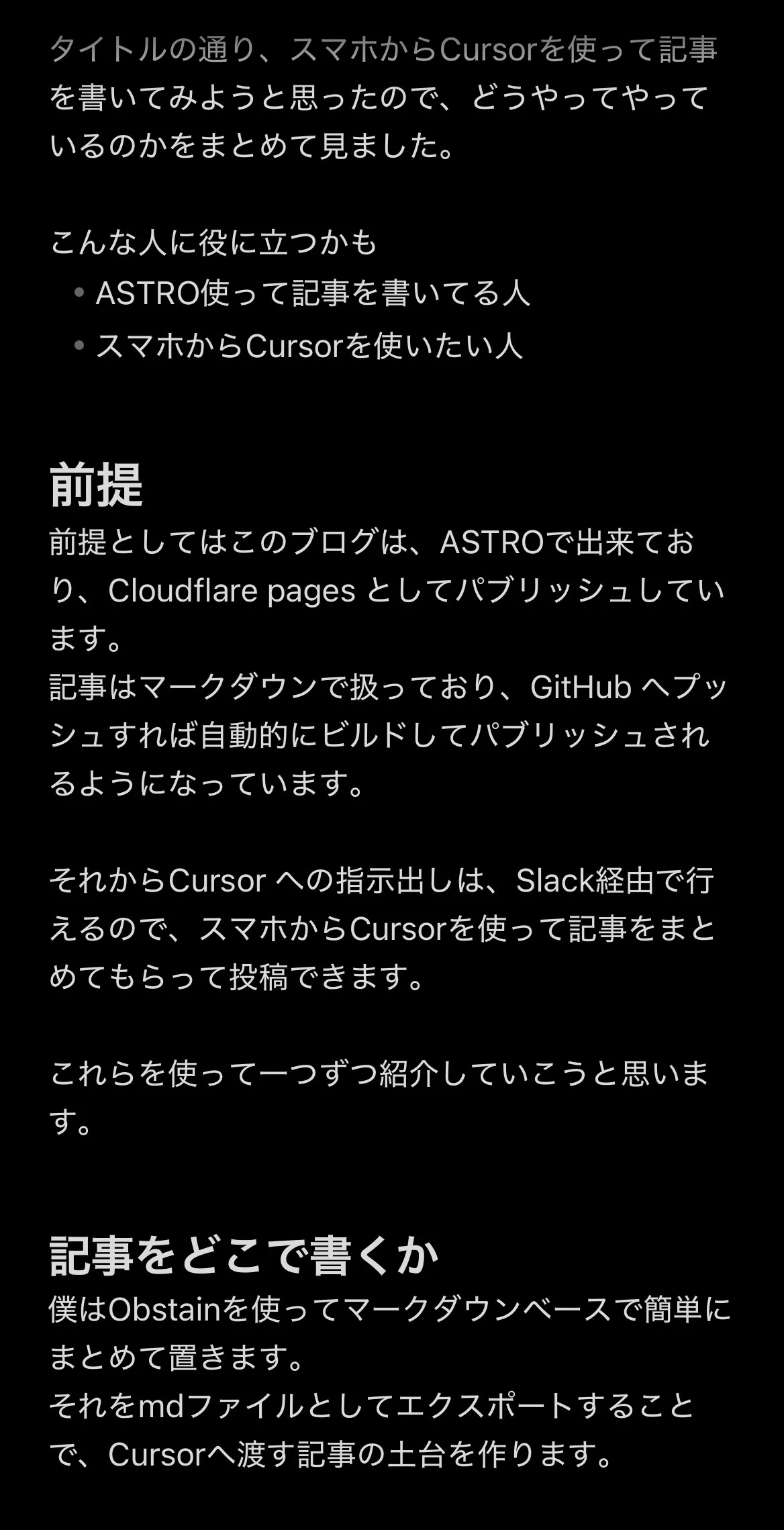
This site is built with Astro and deployed to Cloudflare Pages.
Posts live in Markdown in a Git repo: push to GitHub and a pipeline builds and publishes.
Because Cursor can take instructions through Slack, from my phone I can ask Cursor to shape a draft and open a PR toward that repo.
A proper CMS would be nicer; for now everything is plain Markdown in GitHub.
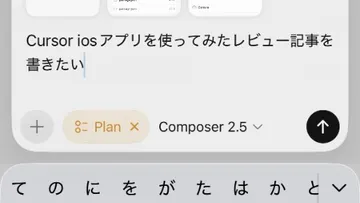
Screenshot of a phone memo covering setup and where writing happens:
My workflow: where the draft lives
I use Obsidian and keep things in Markdown.
I export that content as a text file (still Markdown inside) so it becomes the handoff payload for Cursor.
When you attach images in Obsidian you often get wikilinks like this:
![[IMG_4156.jpeg]]Use the same filenames when you upload assets to GitHub so paths stay aligned. Later you can ask Cursor to swap wikilinks for normal Markdown image paths.
Save the exported .txt with Save to Files so you can attach it easily from Slack.

My workflow: images into the repo (phone → GitHub)
In my setup I could not get images into the GitHub tree through Cursor alone, so images go in by another path.
That is an author constraint, not a claim that Slack cannot attach files. Official Slack permissions include files:read so shared files can be used as agent context — my gap was committing binary assets into the repo from the phone agent flow.
On mobile, open GitHub in the browser with the desktop site — that is the reliable way I found to add files and commit.
Upload the photos you referenced in Obsidian, then keep working.
You can also have Cursor create the post, folders, and placeholder images first, then add real images later and ask for path fixes.
Target folder should match what the Markdown will use, e.g. src/assets/cursor-smartphone-blog-workflow/ for this article.
If filenames match the names in your Obsidian note, wikilinks like ![[IMG_4156.jpeg]] line up with real files and Cursor understands the swap to  more easily.
My workflow: asking Cursor from Slack
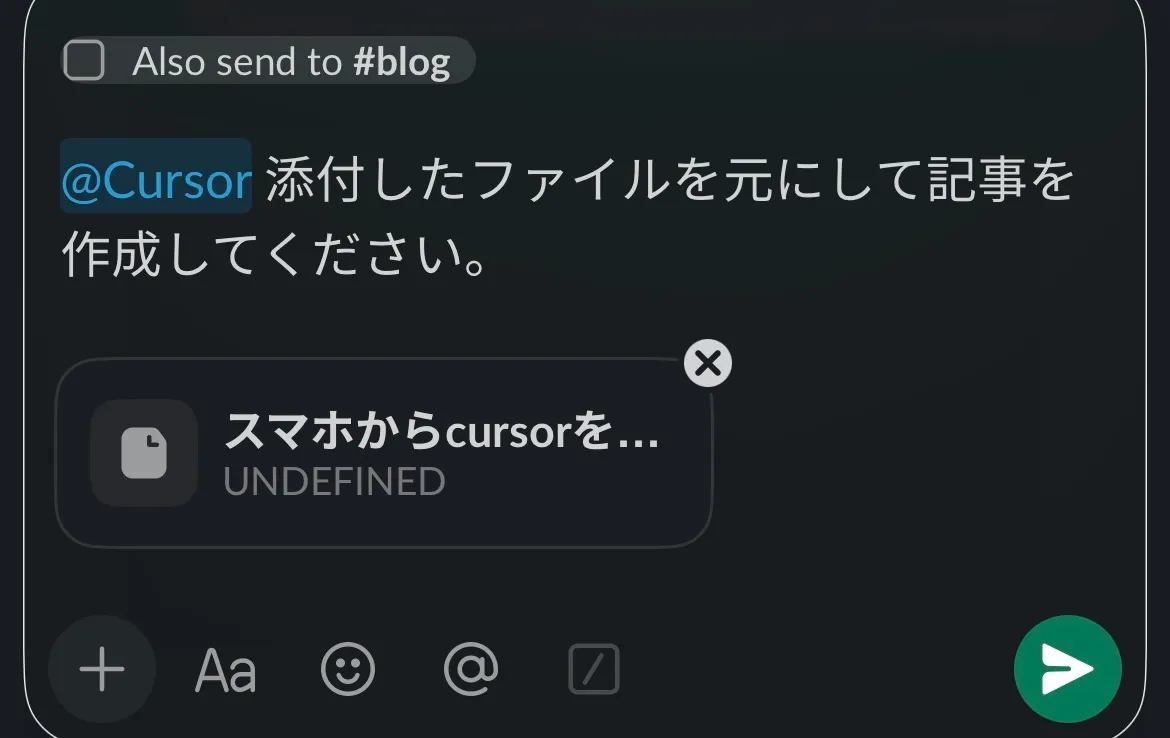
In Slack, @Cursor with something like: please turn the attached file into a blog post.
My workflow: agent settings (repository and branch)
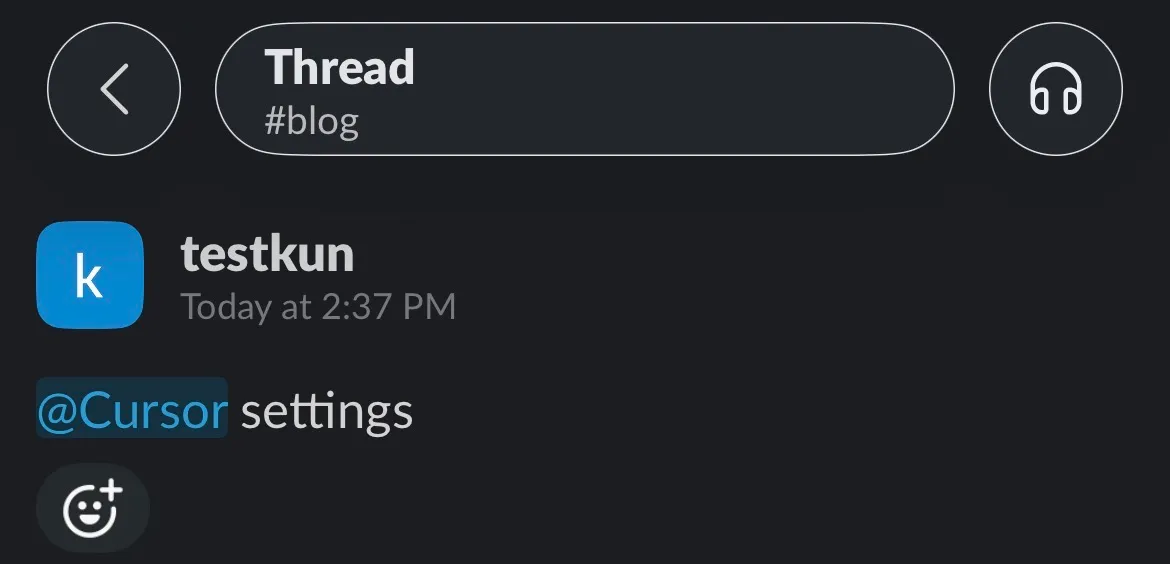
Mention @Cursor settings in Slack to change configuration.
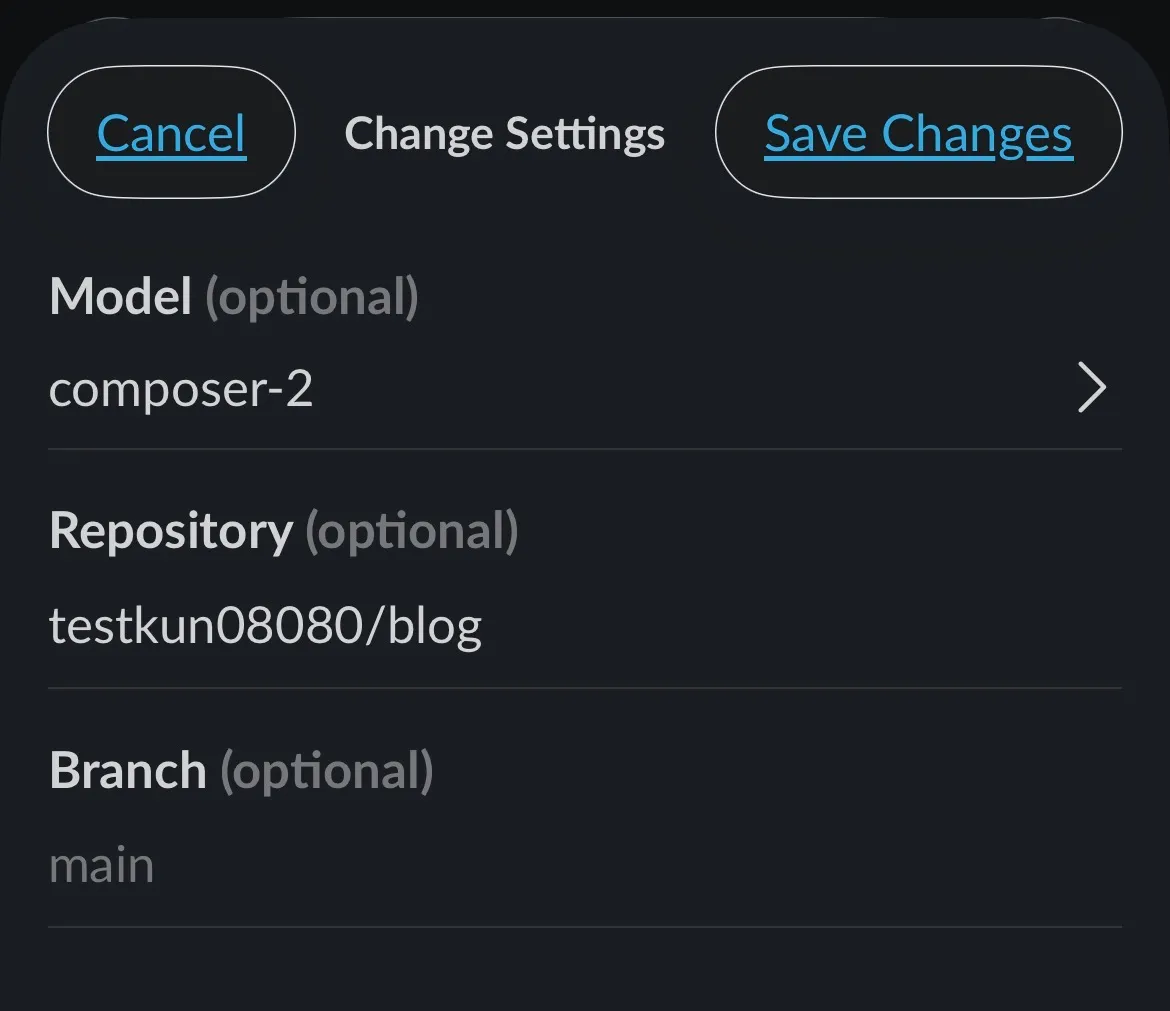
In the UI I see Change Settings with Model, Repository, and Branch. In my case I use composer-2, repository testkun08080/blog, and branch main.
Official docs describe the same idea as defaults / channel defaults (model, repository, base branch) and also allow inline options such as branch=dev or model=opus in the mention itself. Labels in Slack may shift; if your dialog differs, trust the live UI and @Cursor help.
Set the branch explicitly so work does not land on the wrong branch by accident.
Build and preview (Cloudflare Pages)
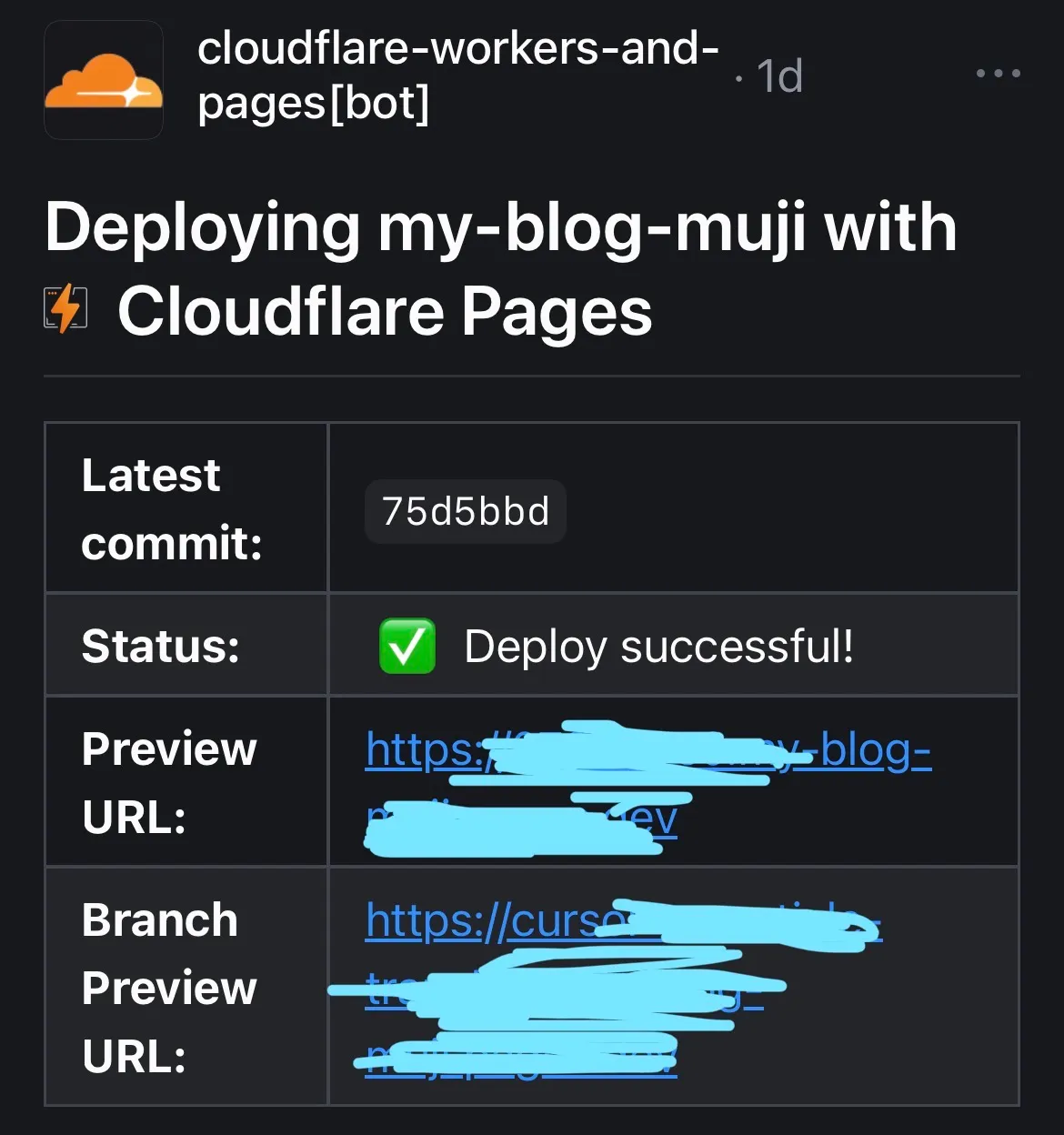
After a push, the Cloudflare Pages bot often comments on the PR with Deploy successful! and a preview URL — that is where I sanity-check the result.
Publishing
If the preview looks good, merge the PR and you are done.
Takeaways
- Preview on Cloudflare still took time for me — image wiring was the fiddly part.
- If I do this more often, I would either build a small editor workflow or harden the image step.
- Obsidian → export as
.md/ text → Cursor via Slack worked fine as a drafting handoff. - Treat Slack install + paid Cloud Agents + repo permissions as official prerequisites; treat Obsidian export + GitHub desktop-site image upload as my glue.
Thanks for reading.
For Cursor’s newer agent UI: How to open Cursor Agents Window
New to Cursor? Try Cursor (50% off for a limited time) (referral link).