When I wanted Google Drive files (videos, etc.) embedded directly in my blog, the steps weren’t obvious in the browser. Here’s what worked for me.
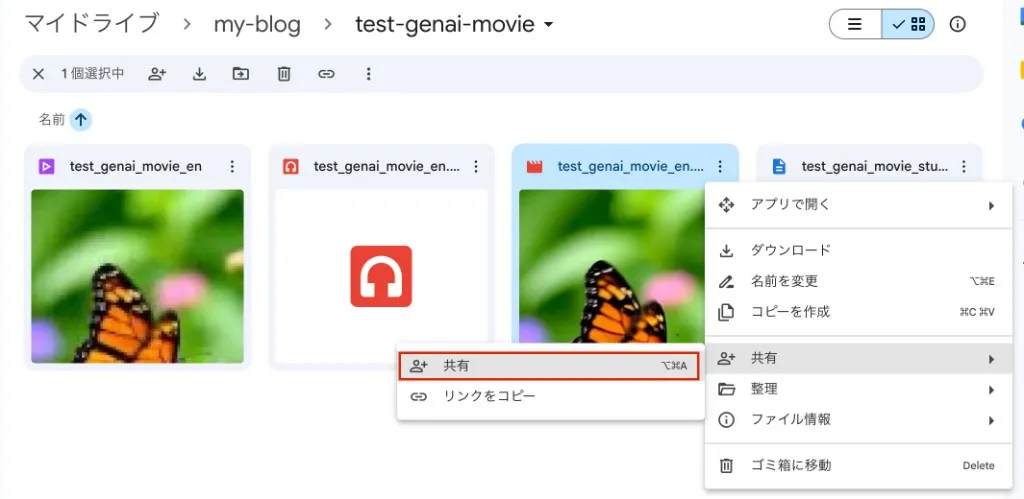
1. Open sharing on the file
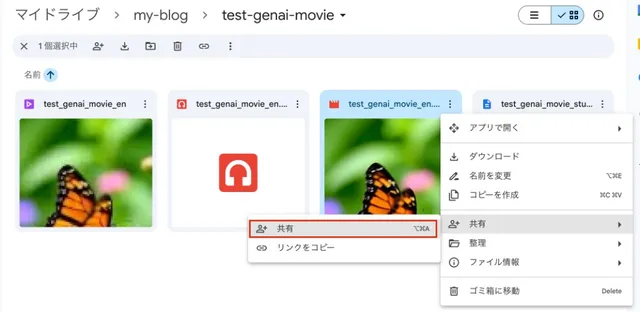
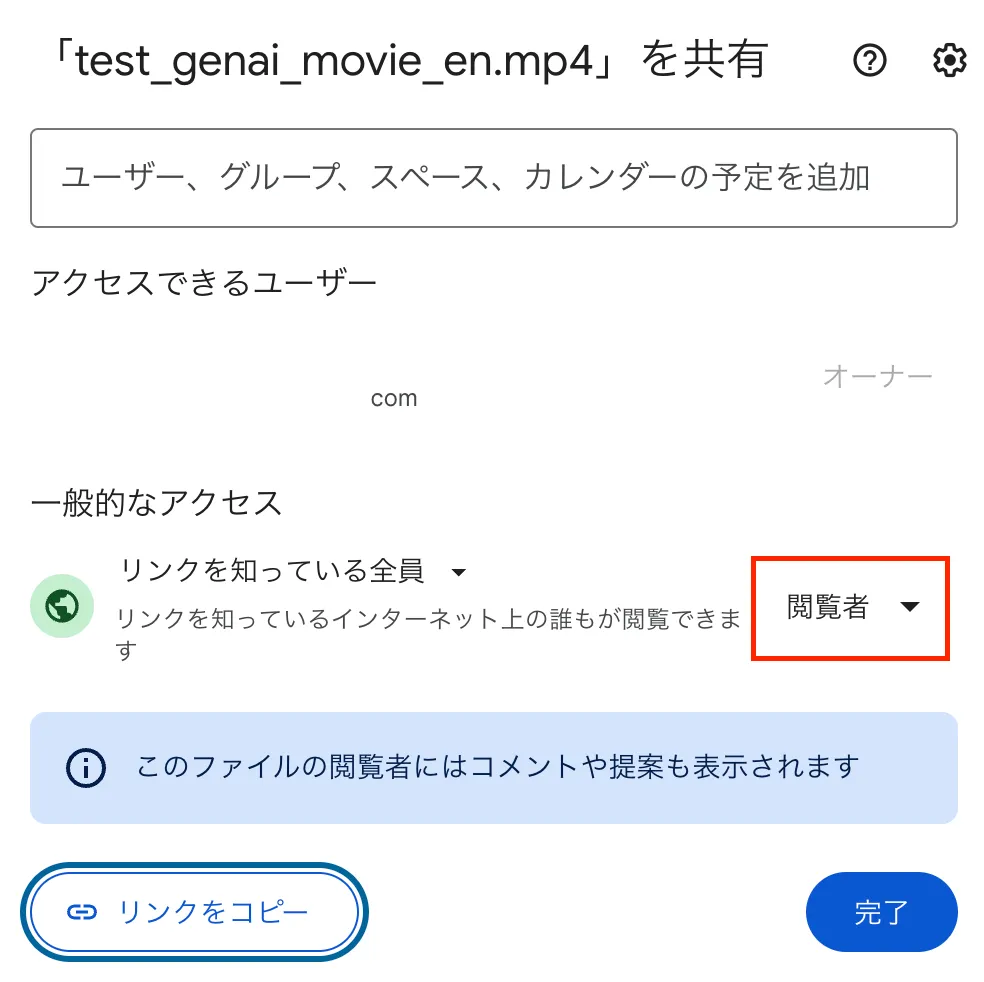
Right-click the file in Drive and choose Share (or Share from the submenu if it appears).
2. “Anyone with the link” + Viewer, then copy link
In the sharing dialog, set General access to Anyone with the link and keep the role Viewer.
If that looks right, click Copy link.
The URL usually looks like this:
The segment like 10N111TfBknfp_dIsVGqegf-SINLpzDKC is the file ID.
https://drive.google.com/file/d/10N111TfBknfp_dIsVGqegf-SINLpzDKC/view?usp=sharing3. The view URL is not embeddable as-is
The /view link is for opening the file in the browser.
Dropping it straight into an <iframe src> usually won’t embed.
For embedding, use the /preview URL.
Option A: Build the iframe yourself
Replace the view?usp=... part with:
<iframe
  src="https://drive.google.com/file/d/FILE_ID/preview"
  width="640"
  height="480"
></iframe>FILE_IDis the same ID from.../file/d/FILE_ID/view....- Adjust
width/heightfor your layout (CSSmax-width: 100%helps on small screens).
In Astro Markdown / MDX you can use raw HTML or wrap it in a component, depending on your setup.
Option B: Drive’s “Embed item” HTML
Open the file in the browser
Paste the view URL into the address bar — you’ll get Drive’s preview UI.
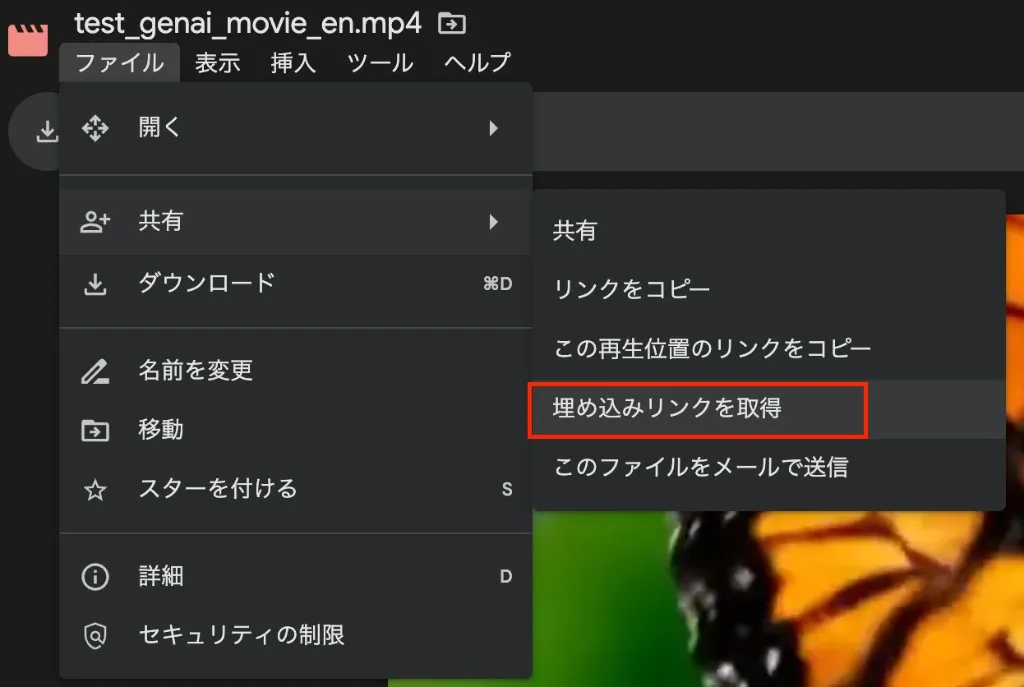
Get embed HTML from the menu
Use File → Share → Embed item (wording may vary slightly by account language).
Copy the iframe HTML
The dialog shows a ready-made iframe — copy it into your site.
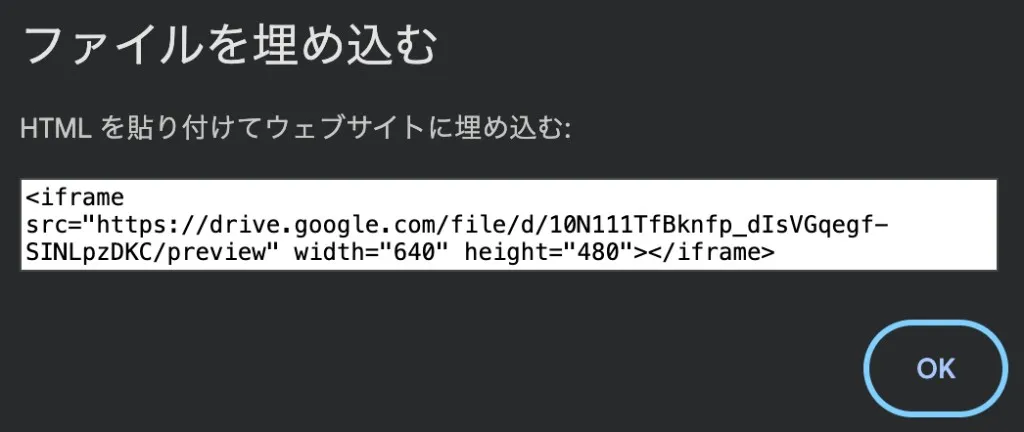
Example
<iframe
  src="https://drive.google.com/file/d/FILE_ID/preview"
  width="640"
  height="480"
></iframe>
What it looks like embedded
Summary
- Anyone with the link / Viewer (or your equivalent), then copy the link.
- For embedding use
https://drive.google.com/file/d/FILE_ID/previewasiframesrc. - Either hand-build the iframe or use File → Share → Embed item to copy HTML.
That’s it.