In the previous post, I set up GitHub Actions for deploys — but macOS runners are billed by the minute.
For a small solo project, that cost adds up, so I tried Xcode Cloud instead.
It comes with the Apple Developer Program, and you get 25 hours per month at no extra charge.
Flutter is not officially supported on Xcode Cloud, so it took a bit of extra setup. I wrote up what I learned here.
Honestly, the caching behavior was confusing — builds sometimes succeeded and sometimes failed for reasons I could not fully explain. What follows is the setup that eventually stabilized, but I am still not 100% sure I understand every piece of it.
Hope that context helps.
What is Xcode Cloud?
Xcode Cloud is Apple’s CI/CD service, configured directly from Xcode.
It is built for macOS, iOS, watchOS, and tvOS builds, and integrates smoothly with App Store Connect.
Apple Developer Program members get 25 free hours per month — usually enough for solo development.
Running Flutter on Xcode Cloud
The Xcode Cloud build environment does not include Flutter.
Homebrew Cask is also unavailable, so brew install --cask flutter will not work.
The fix is to clone the Flutter SDK from Git inside ci_post_clone.sh.
The Flutter docs describe the same approach.
Directory layout
Xcode Cloud picks up CI scripts under ios/ci_scripts/.
See Apple’s custom build scripts documentation for details.
ios/
└── ci_scripts/
    ├── ci_post_clone.sh       # Runs after clone (Flutter install, etc.)
    ├── ci_pre_xcodebuild.sh   # Runs right before xcodebuild
    └── clean_spm_caches.sh    # SPM cache cleanup (shared helper)
ci_post_clone.sh
This installs the Flutter SDK after clone and runs through flutter pub get.
#!/bin/sh

# Xcode Cloud: install Flutter + dependencies after clone.
# Do NOT use `brew install --cask flutter` — Caskroom is unavailable on CI.

set -e

SCRIPT_DIR="$(CDPATH= cd -- "$(dirname -- "$0")" && pwd)"
. "$SCRIPT_DIR/clean_spm_caches.sh"

# Default cwd is ios/ci_scripts/. Move to the repo root.
cd "$CI_PRIMARY_REPOSITORY_PATH"

echo "=== Installing Flutter SDK ==="
FLUTTER_DIR="$HOME/flutter"
if [ ! -d "$FLUTTER_DIR/bin" ]; then
  git clone https://github.com/flutter/flutter.git --depth 1 -b stable "$FLUTTER_DIR"
fi
export PATH="$PATH:$FLUTTER_DIR/bin"

echo "=== Flutter precache (iOS) ==="
flutter precache --ios

echo "=== Flutter pub get ==="
flutter pub get

echo "=== CocoaPods ==="
if ! command -v pod >/dev/null 2>&1; then
  if command -v brew >/dev/null 2>&1; then
    HOMEBREW_NO_AUTO_UPDATE=1 brew install cocoapods
  else
    gem install cocoapods --no-document
  fi
fi

echo "=== Flutter iOS config-only ==="
flutter build ios --config-only

clean_swiftpm_caches

echo "=== ci_post_clone complete ==="

exit 0
Why flutter build ios --config-only matters
Running flutter build ios --config-only updates the FlutterGeneratedPluginSwiftPackage iOS deployment target to match IPHONEOS_DEPLOYMENT_TARGET.
Skip this step and the target stays at 13.0, which can clash with SPM packages like Firebase and break the build.
Firebase SPM issues and clean_spm_caches.sh
When using Firebase on Xcode Cloud, leftover SPM cache can trigger:
error: package at '...' already exists in the file systemXcode Cloud’s caching and SwiftPM’s cache can interfere with each other.
The workaround clears caches on every build and redirects them to a workspace directory.
#!/bin/sh
# Xcode Cloud: avoid Firebase/gRPC SPM "already exists in file system" errors

SWIFTPM_WORKSPACE_CACHE="/Volumes/workspace/.swiftpm-cache"

_remove_tree() {
  target="$1"
  [ ! -e "$target" ] && return 0
  chmod -R u+w "$target" 2>/dev/null || true
  rm -rf "$target"
}

_redirect_swiftpm_cache() {
  link_path="$1"
  parent_dir=$(dirname "$link_path")
  mkdir -p "$parent_dir" || return 1
  _remove_tree "$link_path" || return 1
  ln -sfn "$SWIFTPM_WORKSPACE_CACHE" "$link_path"
}

clean_swiftpm_caches() {
  echo "=== Cleaning SwiftPM caches ==="

  _remove_tree "$SWIFTPM_WORKSPACE_CACHE"
  mkdir -p "$SWIFTPM_WORKSPACE_CACHE"

  for cache_root in \
    "$HOME/Library/Caches/org.swift.swiftpm" \
    "/Users/local/Library/Caches/org.swift.swiftpm" \
    "$HOME/Library/org.swift.swiftpm" \
    "/Users/local/Library/org.swift.swiftpm"; do
    _remove_tree "$cache_root"
  done

  _remove_tree /Volumes/workspace/DerivedData

  # xcodebuild runs as user "local" — redirect that cache too
  _redirect_swiftpm_cache "/Users/local/Library/Caches/org.swift.swiftpm"
  if [ "$HOME" != "/Users/local" ]; then
    _redirect_swiftpm_cache "$HOME/Library/Caches/org.swift.swiftpm"
  fi

  echo "=== SwiftPM cache redirect OK -> $SWIFTPM_WORKSPACE_CACHE ==="
}
/Users/local is the user account Xcode Cloud uses when running xcodebuild.
It is not the same as your $HOME, so you need to redirect both users’ caches.
ci_pre_xcodebuild.sh
This runs right before xcodebuild.
Since ci_post_clone.sh already created the cache symlinks, this script only verifies them.
#!/bin/sh

set -e

LOCAL_SPM="/Users/local/Library/Caches/org.swift.swiftpm"
if [ -L "$LOCAL_SPM" ]; then
  echo "=== ci_pre_xcodebuild: SwiftPM cache -> $(readlink "$LOCAL_SPM") ==="
else
  echo "=== ci_pre_xcodebuild: warning: SwiftPM cache is not a workspace symlink ==="
fi

exit 0
Workflow setup in Xcode Cloud
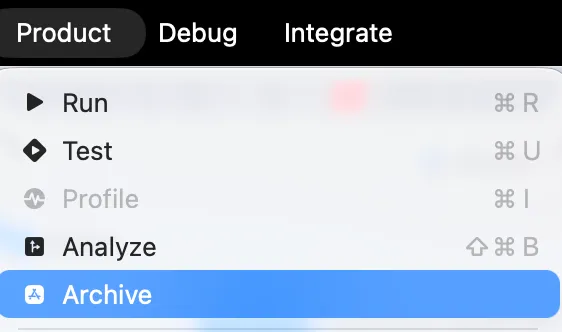
Configure from Product → Xcode Cloud → Create Workflows or Manage Workflows.
In my environment, those menu items stayed grayed out until I had created an Archive at least once — a bit unintuitive.
Open Runner.xcworkspace under ios/, create an Archive, then come back to workflow setup.
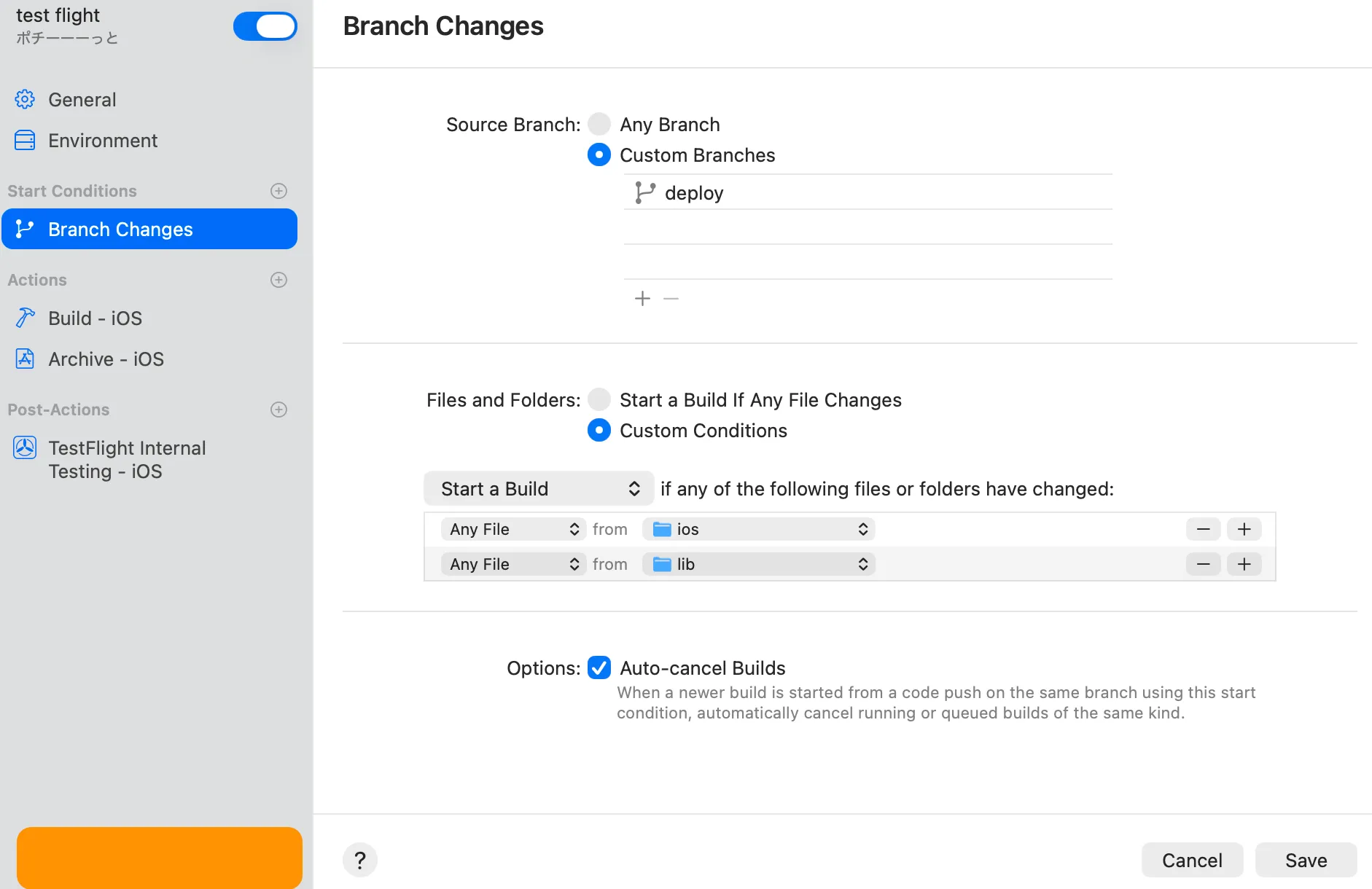
A typical workflow looks like this:
| Setting | Value |
|---|---|
| Start | Push to main or deploy, or a tag |
| Action | Build & Archive |
| Destination | TestFlight (internal testers) |
Certificates and provisioning profiles are managed automatically through App Store Connect.
You do not need fastlane match — Xcode Cloud issues and manages certificates for you.
GHA vs Xcode Cloud
After using both, here is how they compare for me.
| GitHub Actions | Xcode Cloud | |
|---|---|---|
| Cost | macOS runners billed per minute | 25 hours/month free |
| Build setup | subosito/flutter-action and fastlane make it easy | Manual Flutter install via ci scripts |
| Code signing | fastlane match required | Managed automatically |
| Debugging | Can use act locally | Logs only (quirky, but fine once set up) |
Xcode Cloud wins on cost, but Flutter apps need ongoing ci_post_clone.sh maintenance and debugging is harder.
For solo projects, I think the sweet spot is: run GHA by default, and switch to Xcode Cloud when you really need to save on runner minutes.
Summary
For a solo iOS app, GHA is probably enough day to day. If you need to run builds constantly — say, triggering Cloud agents from your phone via Claude or Cursor and checking the results — Xcode Cloud’s free hours start to look attractive.
Series posts
This is the last post in a three-part Flutter iOS build and deploy series. The earlier two are worth reading first.
- Upload Flutter Apps to TestFlight from Your Mac with Fastlane — fastlane match on your Mac, from first signing through TestFlight upload
- Deploy Flutter Apps to TestFlight with GitHub Actions — call the same Fastfile from GHA for automatic deploys
Related links
- Xcode Cloud documentation
- Custom build scripts in Xcode Cloud
- Flutter and Xcode Cloud (official Flutter docs)