When you blog with Astro, you often want a small HTML/CSS/JS demo in a post.
This post walks through CodePen—handy for runnable samples in the browser—and pasting the embed into an Astro article so it shows up in preview.
The flow is:
- Setup
- Classic
- Pen 2.0
- Hands-on (same kind of CSS infinite-text animation in both editors)
…and a short wrap-up at the end.
Setup
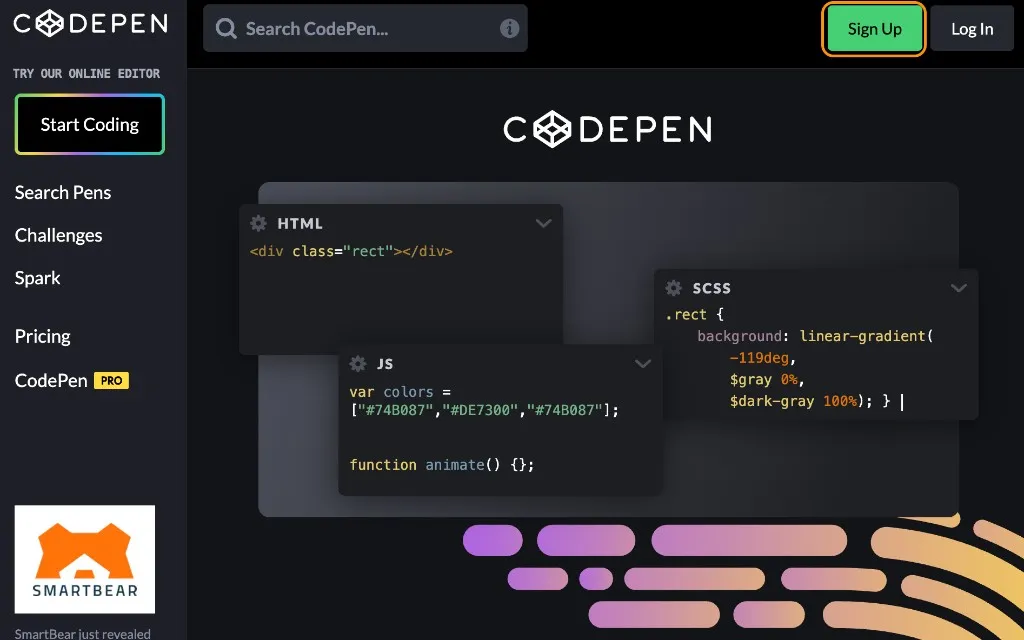
Open CodePen and choose Sign Up
Open CodePen.
You should see Sign Up (green button) in the top-right—use it to create an account.
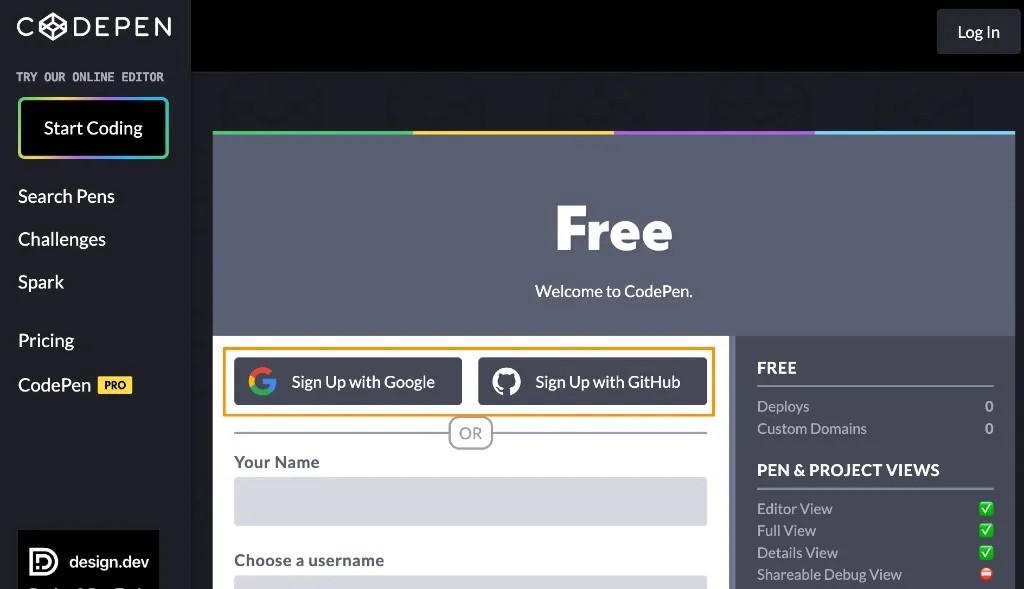
Register with Google, GitHub, or email
On the registration screen you can pick Google, GitHub, or email.
I used GitHub—any option is fine.
After login (Classic Pen and Pen 2.0)
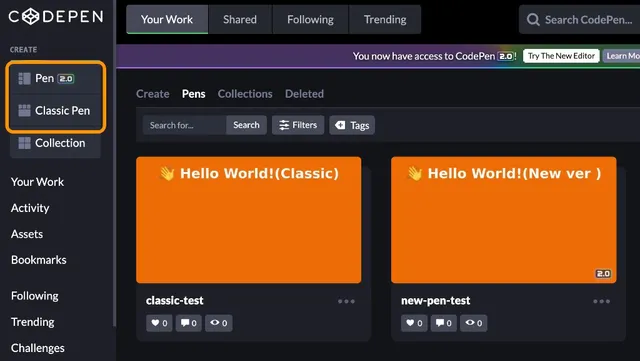
After sign-up you land on a dashboard with Your Work and similar.
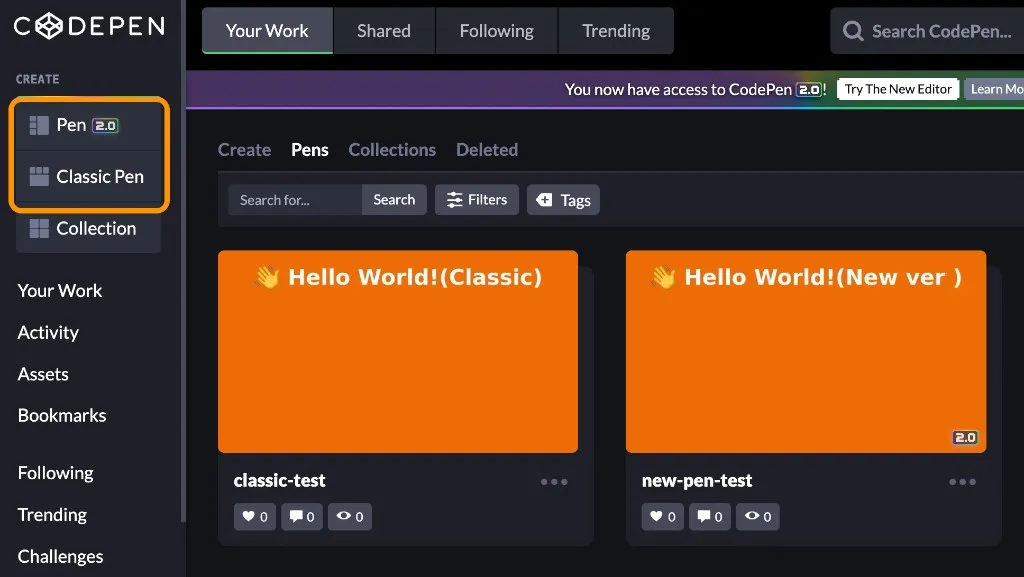
Near CREATE on the left you should see both Pen 2.0 (new editor) and Classic Pen (the classic three-pane layout).
Paste into Astro Markdown (Classic and Pen 2.0)
Embeds copied from either editor use the same shape.
If your blog lets you write raw HTML in Markdown (or MDX), paste the copied <p class="codepen" ...> and <script> as-is.
- To show the markup, put it in an HTML fenced code block (fence with
htmlon the opening line). - To run it in the post, paste it as raw HTML, not inside a code block (see the live previews under Classic, Pen 2.0, and Hands-on).
Classic
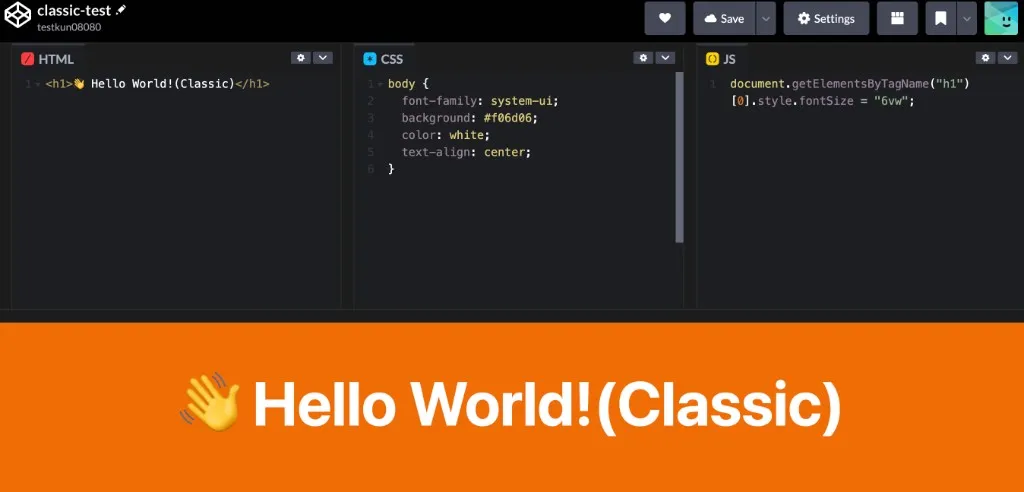
Classic editor layout
Classic Pen uses tabs for HTML / CSS / JavaScript on top and a preview below—the layout most people know.
Embed from Classic
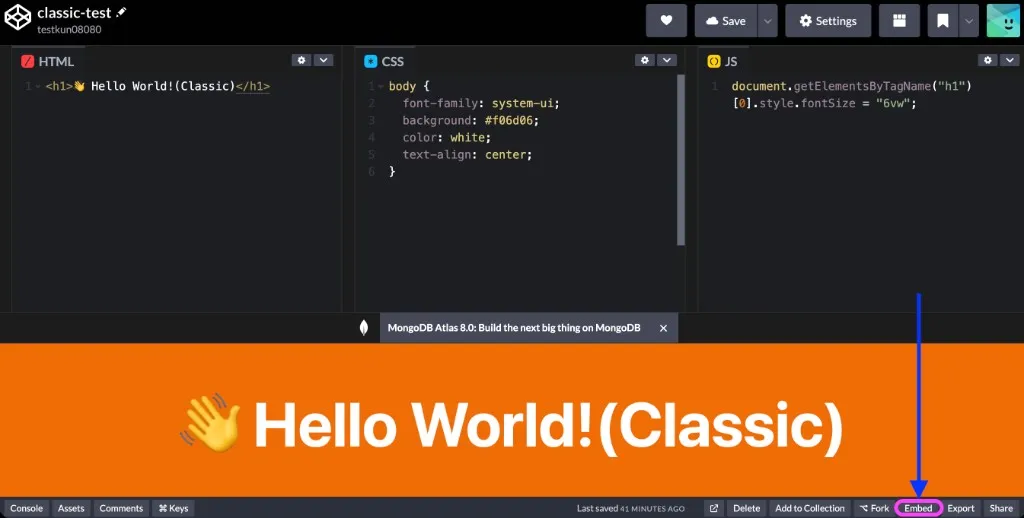
In Classic, Embed lives on the bottom toolbar (near Export and Share), not the top bar.
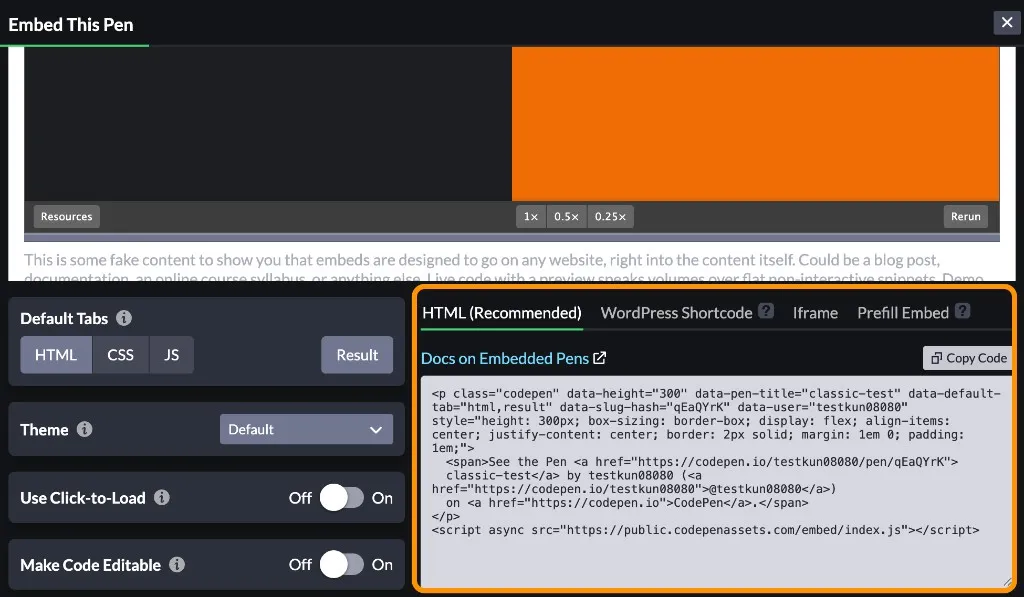
Embed opens Embed This Pen.
Choose HTML (Recommended), WordPress Shortcode, Iframe, etc., then Copy Code.
Copied code looks like this (classic-test example; data-slug-hash and href match your pen). Pasting that <p class="codepen"> and <script> into Astro Markdown is enough for the embed (same rules as Setup).
<p
  class="codepen"
  data-height="300"
  data-pen-title="classic-test"
  data-default-tab="html,result"
  data-slug-hash="qEaQYrK"
  data-user="testkun08080"
  style="height: 300px; box-sizing: border-box; display: flex; align-items: center; justify-content: center; border: 2px solid; margin: 1em 0; padding: 1em;"
>
  <span
    >See the Pen
    <a href="https://codepen.io/testkun08080/pen/qEaQYrK"> classic-test</a> by
    testkun08080 (<a href="https://codepen.io/testkun08080">@testkun08080</a>)
    on <a href="https://codepen.io">CodePen</a>.</span
  >
</p>
<script async src="https://public.codepenassets.com/embed/index.js"></script>
Live preview (Classic)
Below is the same embed pasted as raw HTML in the body.
Loading can take a few seconds.
See the Pen classic-test by testkun08080 (@testkun08080) on CodePen.
Pen 2.0
Pen 2.0 layout
Pen 2.0 feels more like an IDE: file tree on the left, editor in the middle, preview on the right.
Splitting files is easy—I’ll likely use this as my default going forward.
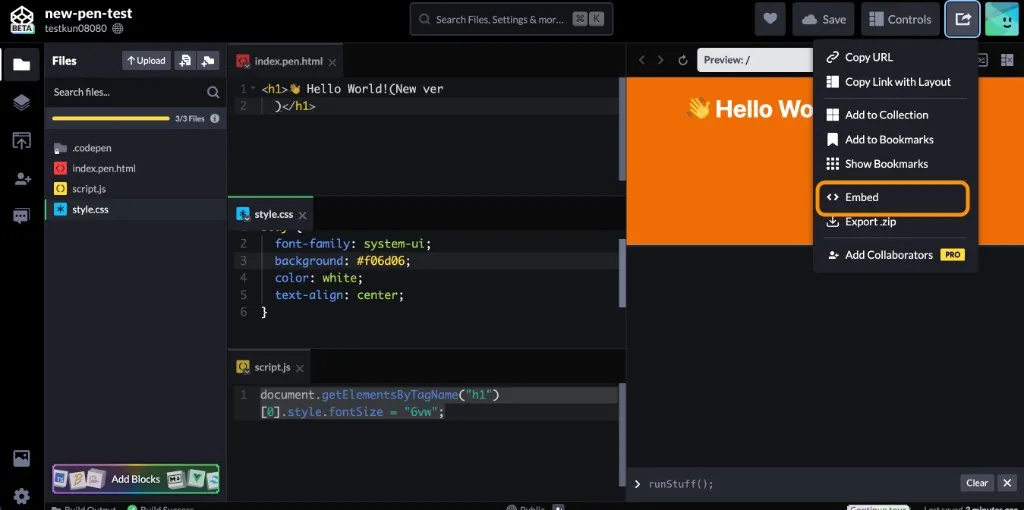
If you move CSS/JS into style.css or script.js, they are not auto-wired like Classic’s three panes.
You need <link rel="stylesheet" href="style.css"> and <script src="script.js" defer></script> (or similar) from index.html.
Skipping that breaks both preview and embed (I forgot once in the hands-on section below).
Get embed code (Export / Share → Embed)
In Pen 2.0, open the share/export-style icon at the top and choose Embed from the menu (see the orange highlight in the screenshot above).
Pick HTML in the embed modal
Embed This Pen opens.
Tabs include HTML (Recommended), WordPress Shortcode, Iframe, Prefill Embed, etc.
Start with the recommended HTML and Copy Code.
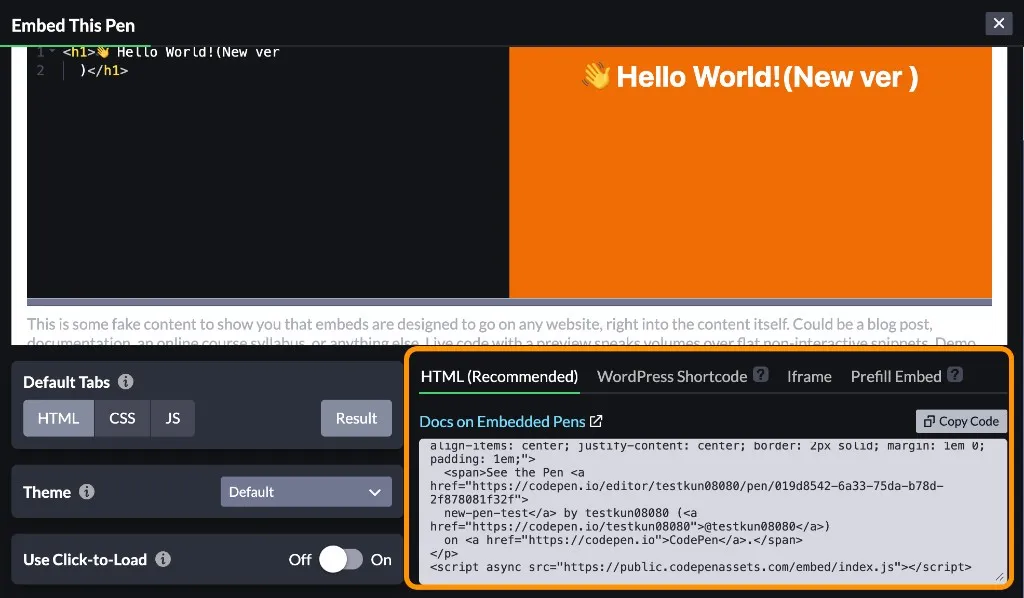
Sample embed markup
Copied code looks roughly like this (data-* values come from your pen.
Pen 2.0 pens may include data-version="2").
<p
  class="codepen"
  data-height="300"
  data-pen-title="new-pen-test"
  data-version="2"
  data-default-tab="html,result"
  data-slug-hash="bNwQMVb"
  data-user="testkun08080"
  style="height: 300px; box-sizing: border-box; display: flex; align-items: center; justify-content: center; border: 2px solid; margin: 1em 0; padding: 1em;"
>
  <span
    >See the Pen
    <a
      href="https://codepen.io/editor/testkun08080/pen/019d8542-6a33-75da-b78d-2f878081f32f"
    >
      new-pen-test</a
    >
    by testkun08080 (<a href="https://codepen.io/testkun08080">@testkun08080</a
    >) on <a href="https://codepen.io">CodePen</a>.</span
  >
</p>
<script async src="https://public.codepenassets.com/embed/index.js"></script>
Live preview (Pen 2.0)
Same embed pasted below (may take a few seconds to load).
See the Pen new-pen-test by testkun08080 (@testkun08080) on CodePen.
The fallback link text points at a normal CodePen /pen/slug URL for clarity; the embed still keys off data-slug-hash and friends.
Hands-on: infinite CSS text animation
After walking through the flow, I built the same kind of demo in both Pen 2.0 and Classic: a horizontal infinite-loop style CSS animation (repeated text, animation / transform, etc.).
Pen 2.0 version (text-mugen-CSSAnim(Pen2.0))
In Pen 2.0 you can split work across index.html, style.css, etc.—file tree, editor, preview.
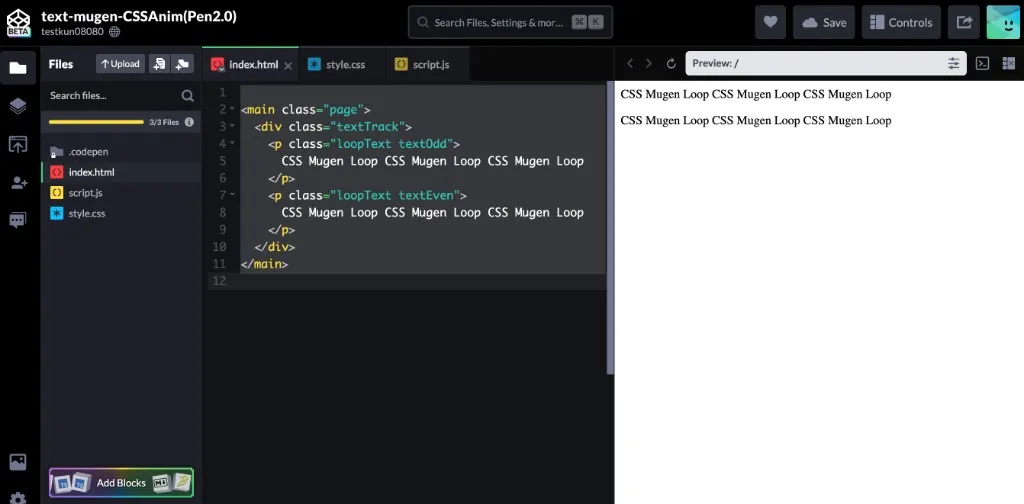
With style.css / script.js, you must link them from index.html yourself. I forgot that at first. In Classic, HTML/CSS/JS tabs still feed the preview automatically; Pen 2.0’s multiple files do not connect until you add <link ...> / <script ...>. Until then, styles and scripts won’t run.
With that missing, preview and embed looked wrong—CSS never applied. After adding the links in HTML, both the editor preview and this blog embed behaved as intended.
Embed code from the fixed pen:
<p
  class="codepen"
  data-height="300"
  data-pen-title="text-mugen-CSSAnim(Pen2.0)"
  data-version="2"
  data-default-tab="html,result"
  data-slug-hash="VYKVdjw"
  data-user="testkun08080"
  style="height: 300px; box-sizing: border-box; display: flex; align-items: center; justify-content: center; border: 2px solid; margin: 1em 0; padding: 1em;"
>
  <span
    >See the Pen
    <a
      href="https://codepen.io/editor/testkun08080/pen/019d8593-769c-7726-a0e1-44ebe473312d"
    >
      text-mugen-CSSAnim(Pen2.0)</a
    >
    by testkun08080 (<a href="https://codepen.io/testkun08080">@testkun08080</a
    >) on <a href="https://codepen.io">CodePen</a>.</span
  >
</p>
<script async src="https://public.codepenassets.com/embed/index.js"></script>
Live preview (Pen 2.0)
Same attributes as above, embedded in the post. If it looks off, check whether HTML loads CSS/JS, open the pen directly, or try the Iframe tab.
See the Pen text-mugen-CSSAnim(Pen2.0) by testkun08080 (@testkun08080) on CodePen.
Classic version (text-mugen-CSSAnim(classic))
Same idea in Classic Pen: HTML / CSS / JS panes and preview below (no JS here—CSS only).
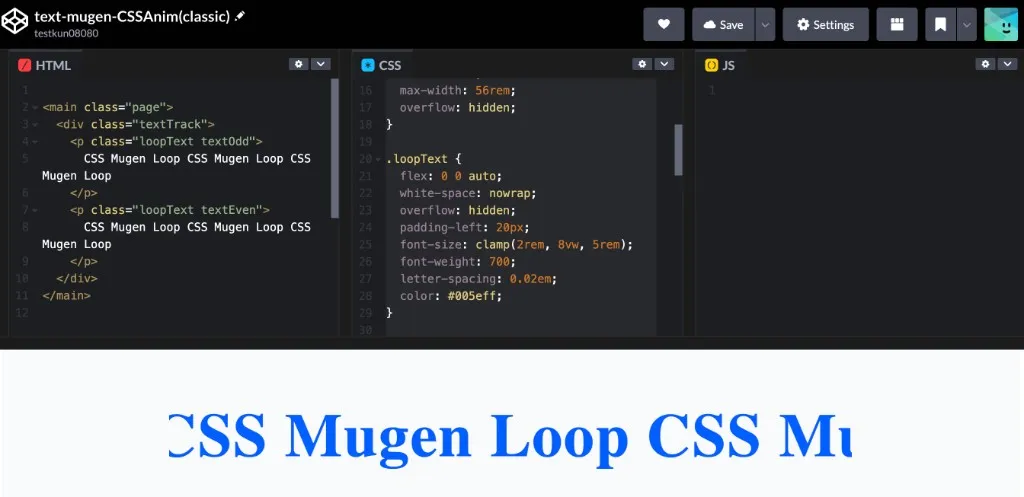
Classic wires HTML/CSS tabs into the preview automatically, so you’re less likely to hit the “forgot to link files” issue you get in Pen 2.0.
The embed matched the editor preview as expected.
<p
  class="codepen"
  data-height="300"
  data-pen-title="Untitled"
  data-default-tab="html,result"
  data-slug-hash="ogzQyog"
  data-user="testkun08080"
  style="height: 300px; box-sizing: border-box; display: flex; align-items: center; justify-content: center; border: 2px solid; margin: 1em 0; padding: 1em;"
>
  <span
    >See the Pen
    <a href="https://codepen.io/testkun08080/pen/ogzQyog"> Untitled</a> by
    testkun08080 (<a href="https://codepen.io/testkun08080">@testkun08080</a>)
    on <a href="https://codepen.io">CodePen</a>.</span
  >
</p>
<script async src="https://public.codepenassets.com/embed/index.js"></script>
On CodePen the title may still read Untitled—rename the pen in settings if you want, then copy embed code again.
Live preview (Classic)
See the Pen text-mugen-CSSAnim(classic) by testkun08080 (@testkun08080) on CodePen.
Wrap-up
- Visually, Classic embeds looked a bit nicer to me, but I plan to keep using Pen 2.0 as my default.
- In Pen 2.0, when you split out
style.css, don’t forget<link>/<script>fromindex.html—I skipped that once and the layout broke; after fixing it, the embeds above worked. Classic auto-applies the three panes to preview, so that mistake is rarer.
Depending on your CMS, you may need iframes or other options if something still won’t run—that’s worth experimenting with.
That’s it.