I built Gradient Thumbnail Maker because my note / blog thumbnail flow was annoying — not because the world needed another gradient toy.
Why I built it
For note thumbnails I used Photo Gradient to make the mesh gradient, then Photoshop to put text on top. Two apps, two exports, every time.
Photo Gradient doesn’t put typography on the gradient in that flow (it also has a Figma plugin). I wanted one browser page: tweak the mesh, set the headline, download a PNG.
That personal itch is the whole product brief. More context in vibe coding: three shipped projects and the Japanese note “Happy New Year” thumbnail maker.

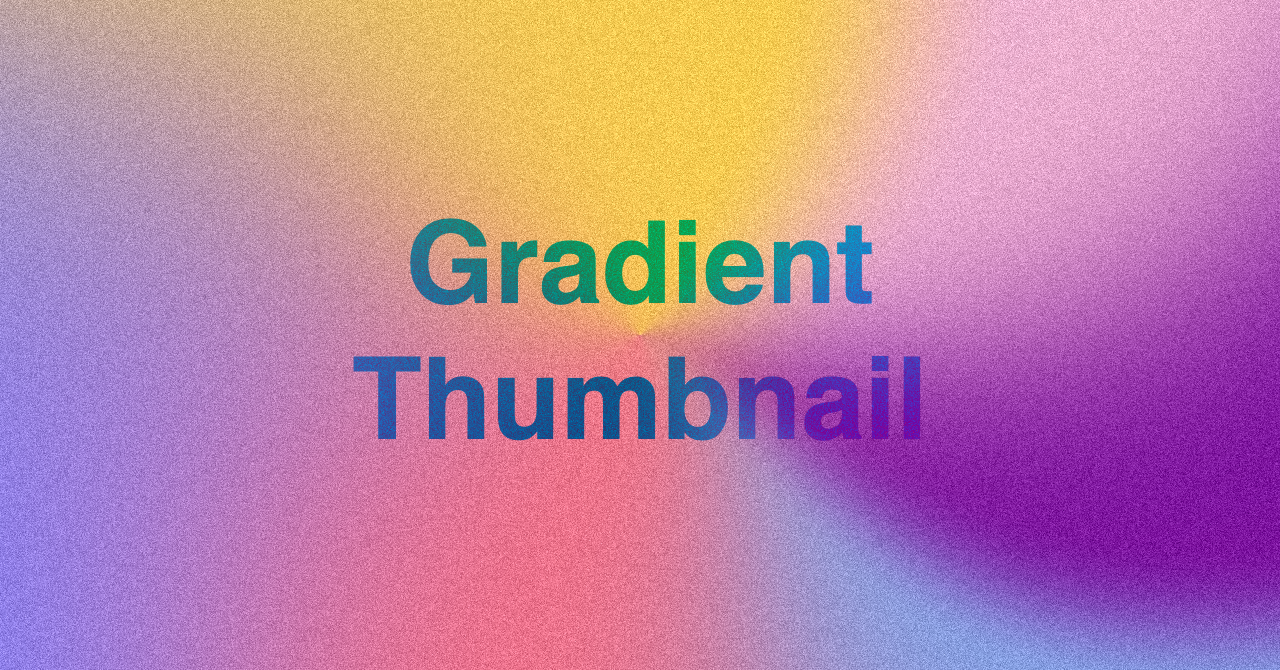
Where I’ve actually used it
Examples I can point at without inventing a usage log:
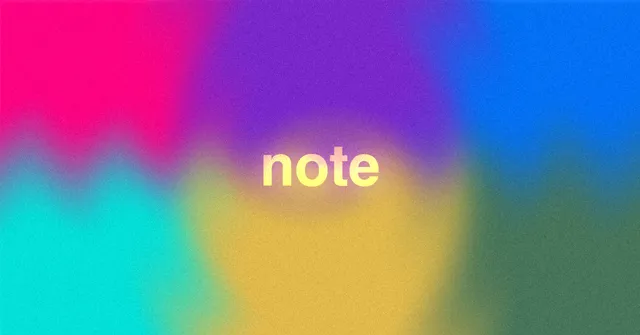
- This article’s hero (
thumb.png) — the mesh + title treatment for the post that documents the tool. - Note write-up — “Happy New Year” thumbnail maker: the original job was note / OGP-style thumbs with gradient + title in one pass.
- Listed as project 3 in vibe coding: three shipped projects — same motive (replace Photo Gradient → Photoshop).
What it is not: a full design suite. Complex multi-layer composites, brand kits, or print layouts still belong elsewhere. I built it to kill the Photo Gradient → Photoshop hop for simple heroes.
Features (once)
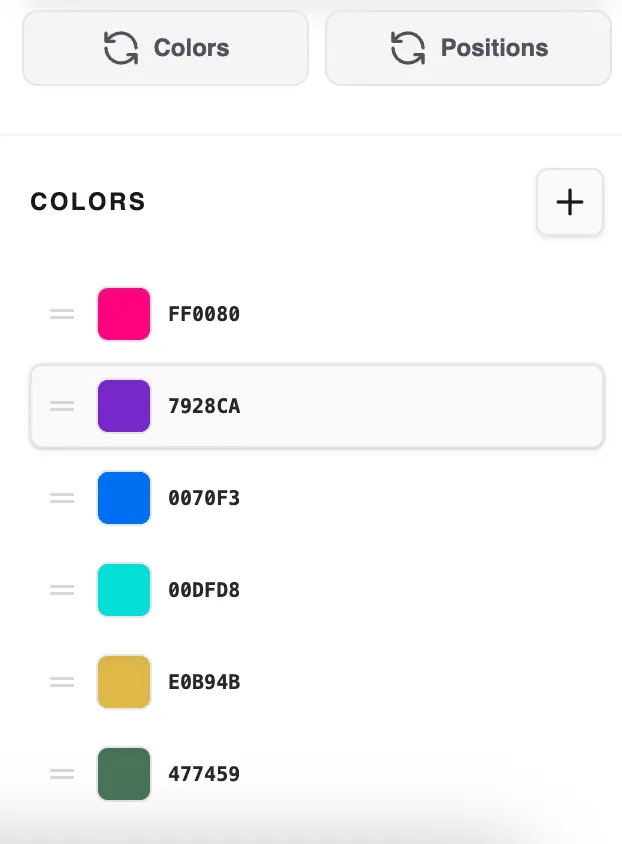
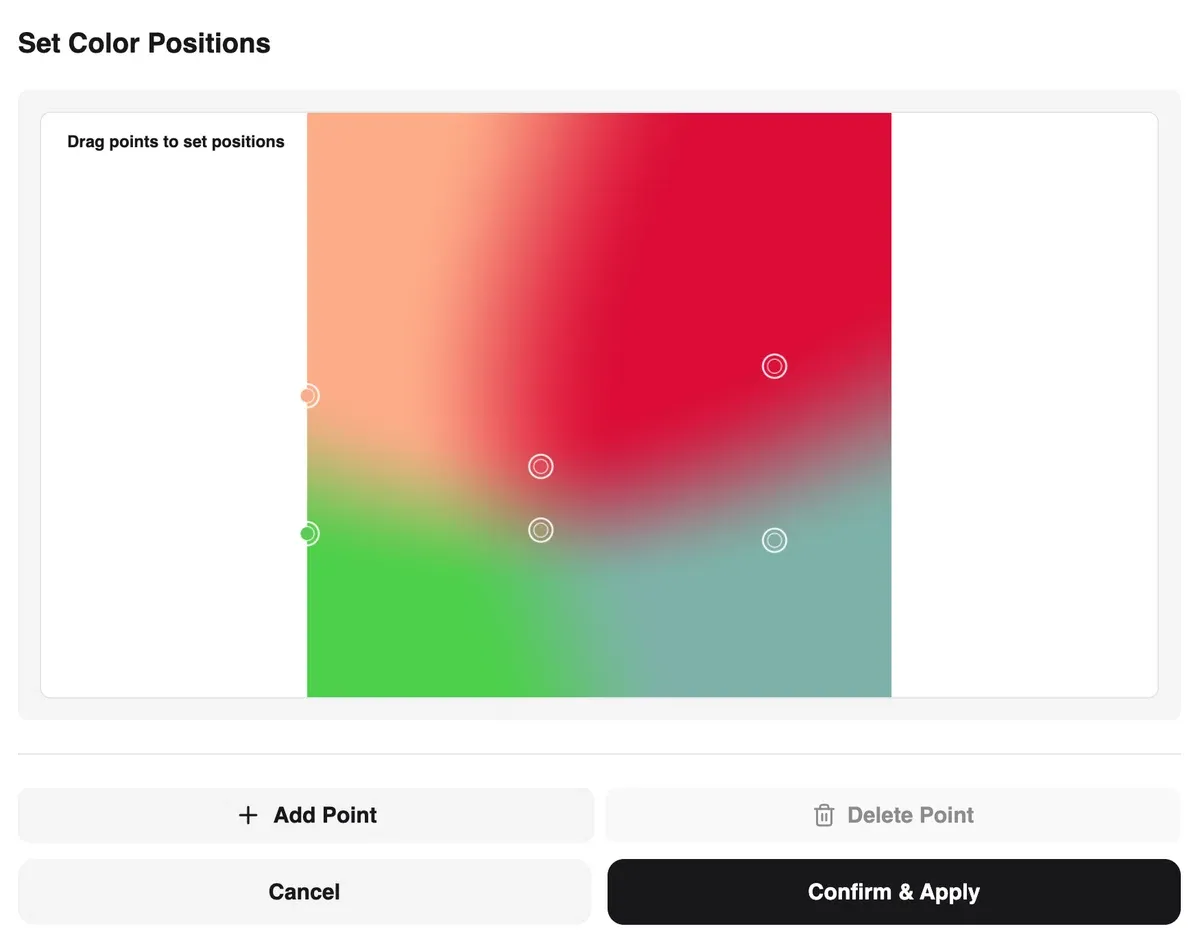
- Mesh gradients — drag control points and adjust colors
- Text — font, size, color, placement
- Resolution — presets including note’s recommended 1280×670, or custom
- Noise — optional grain
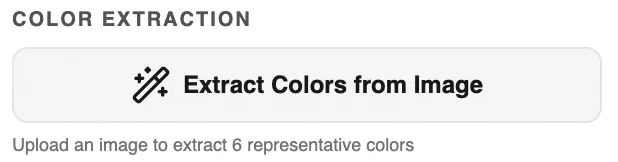
- Extract colors from an image — palette from a reference
- Randomize — Colors / Positions
- Export PNG
Screenshots (how it looks)
Preview in the center; panels around it for settings.
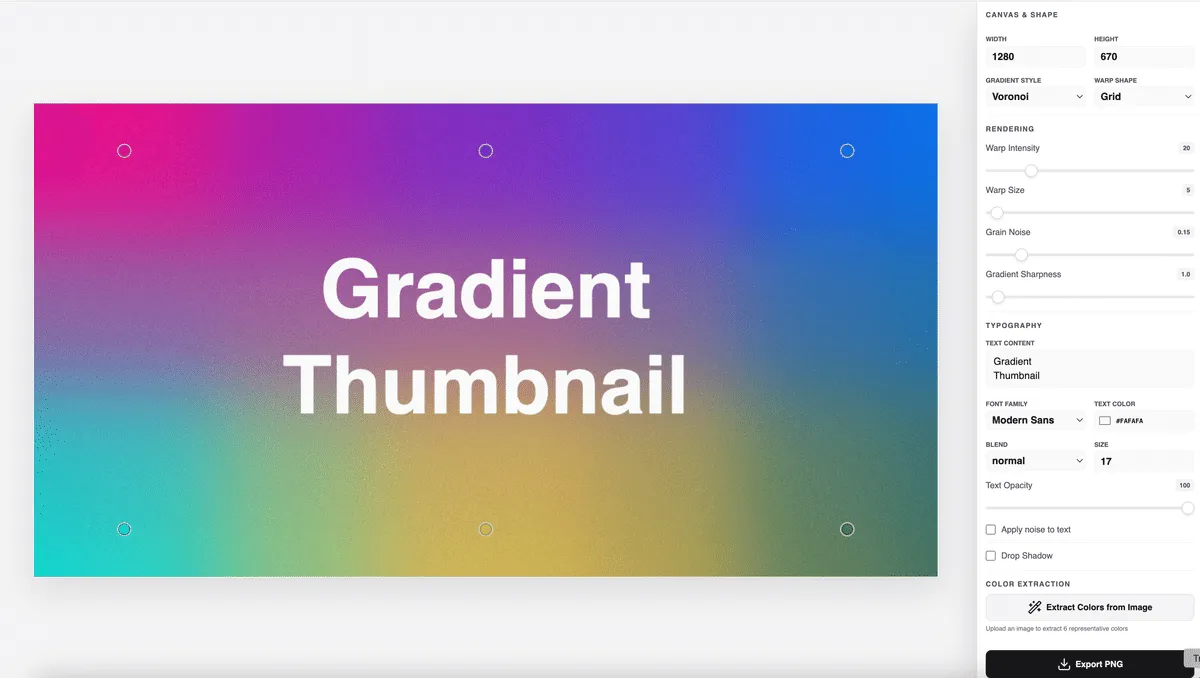
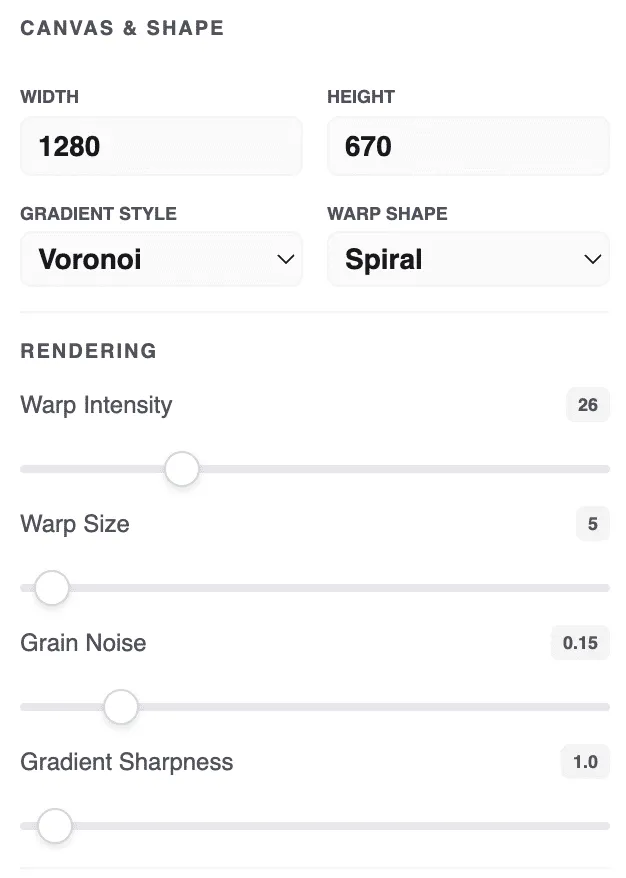
Resolution and optional noise:
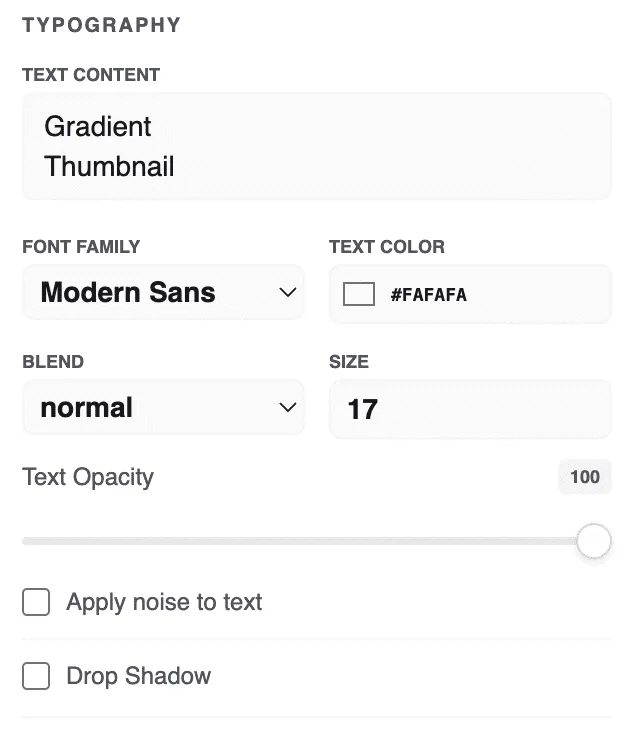
Headline / font / placement:
Per-point colors; Colors / Positions randomize:
Pull a palette from a photo or illustration:
Download:

Closing
Free, in-browser, built for my own note and blog thumbs. If you only need mesh + text → PNG, try it: